If you follow the course with Unity 5, Unity 2017 or Unity 2018, you probably know our helpful document. Unfortunately, the formatting on Google Docs is fairly limited. So I thought I’m creating a little wiki here with a more pleasant formatting and additional information.
GetComponent: Replacement for rigidbody2D and audio
As of Unity 5, most of the magical variables are deprecated. So if you want to get a component that is attached to a game object, you need to use GetComponent<T>(). Replace T by the class name.
In Unity 5, the SceneManager was introduced. Previously, you simply called Application.LoadLevel. Levels are called scenes now.
This is what you need to do in your LevelManager.cs:
// Add the namespace at the top of your script
using UnityEngine.SceneManagement;

// Load the next scene from the build settings
public void LoadNextLevel () {
    SceneManager.LoadScene(SceneManager.GetActiveScene().buildIndex + 1);
}

// Load a new scene by its name
public void LoadLevel (string name) {
    SceneManager.LoadScene(name);
}
With the SceneManagement, Unity introduced an event system. In comparison with the convenient OnLevelWasLoaded method, the new code probably looks overly complicated. Don’t worry too much about it. Copy and paste the code, and you are done. If you are interested in this topic (delegates and events), please refer to the additional information at the bottom.
Levels are now called scenes in Unity. Accordingly, I named the replacement for OnLevelWasLoaded OnSceneLoaded. It is a method created by me. You can name it whatever you want as long as the name is unique. Just make sure you add it and remove it from sceneLoaded. Furthermore, the method must take in two arguments: Scene scene, LoadSceneMode loadSceneMode.
// Add the namespace at the top of your script
using UnityEngine.SceneManagement;

private void OnEnable () {
	SceneManager.sceneLoaded += OnSceneLoaded;  // subscribe
}

private void OnDisable () {
	SceneManager.sceneLoaded -= OnSceneLoaded;  //unsubscribe
}

private void OnSceneLoaded (Scene scene, LoadSceneMode loadSceneMode) {
	// the code that was used in OnLevelWasLoaded()
}
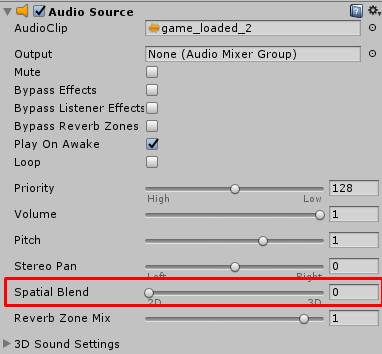
As of Unity 5, there aren’t any 2D/3D sounds anymore. The AudioSource now determines how sounds are treated. Go to the AudioSource component in your Inspector and change the Spatial Blend value.
This also applies to the PlayOneShot method which instantiates a short-living game object with an AudioSource attached. In the Block Breaker game, some crack sounds could suddenly appear louder than others. To fix this, do not pass on the position of the brick but of the position of the camera. The camera has got an AudioListener attached, so all AudioSources set to 3D use the distance to determine the volume of the sound clips.
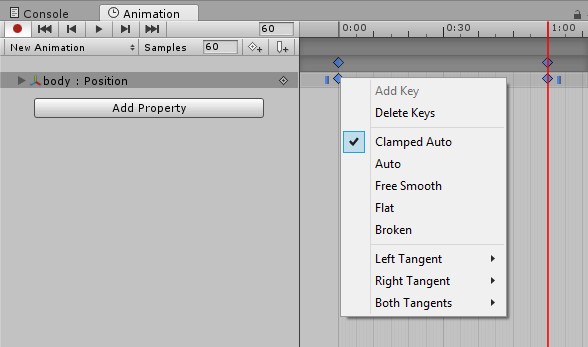
Ben’s courgette is rotating smoothly but yours in Unity 5 or Unity 2017 is not? Select the keyframes in the Animation window, click your right mouse button and select ‘Auto’. If that does not work, try ‘Free Smooth’.