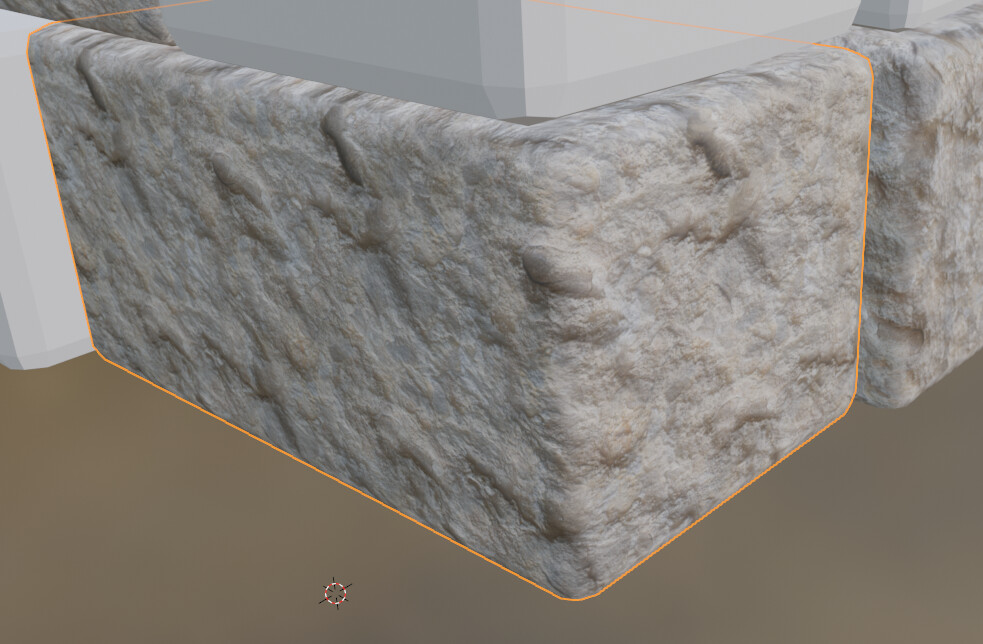
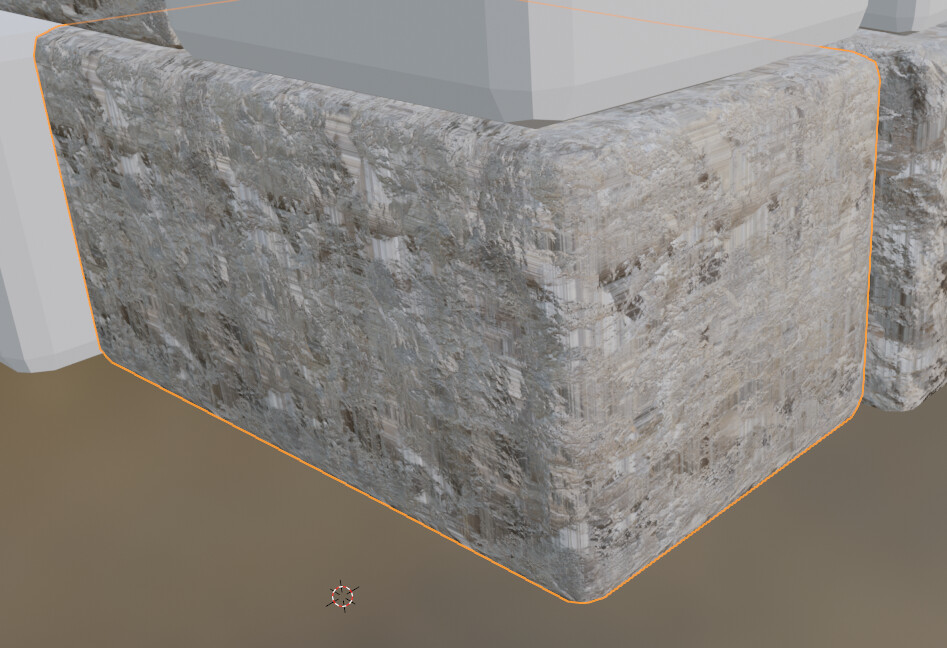
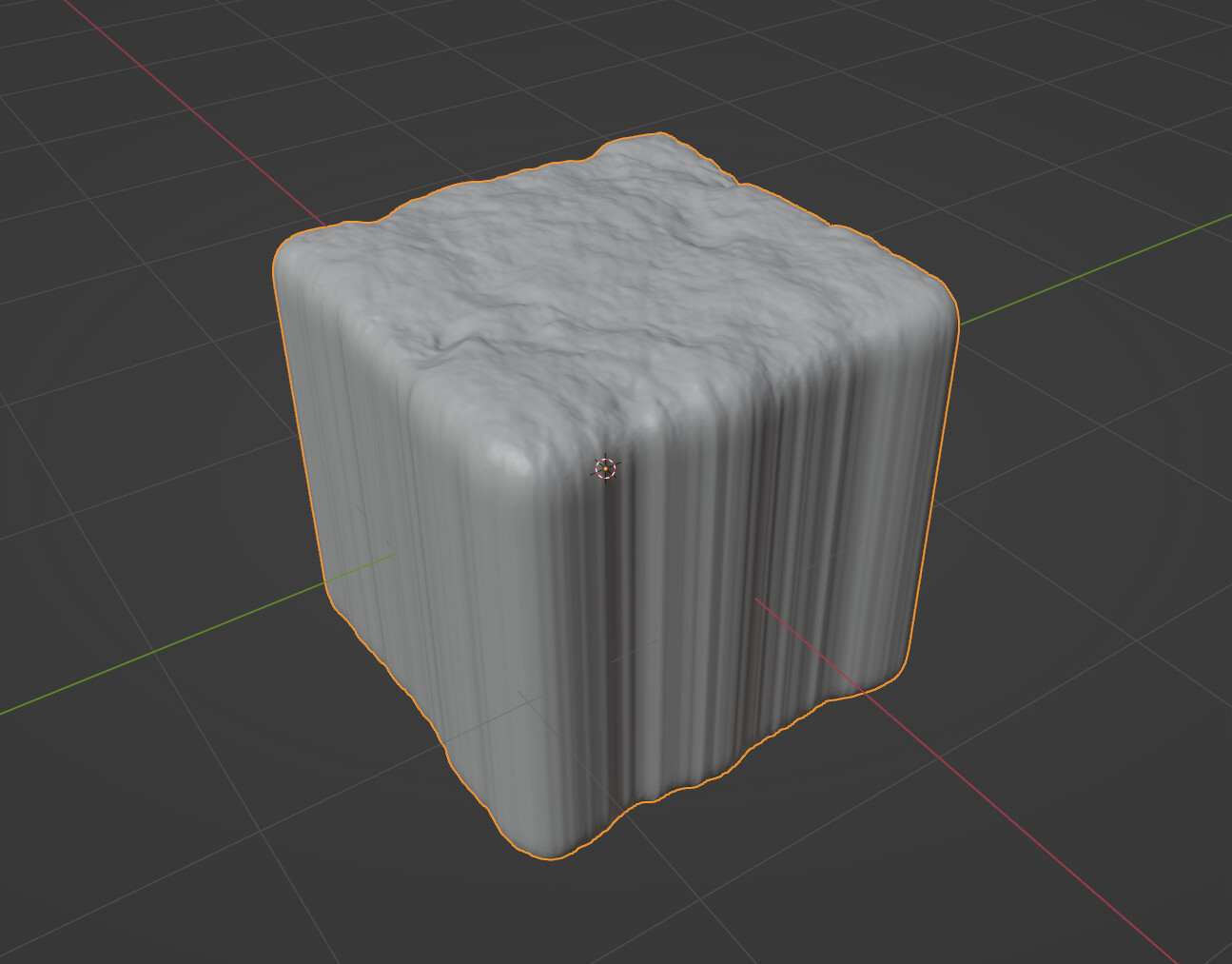
I keep getting this “bug”(?) with displacement maps constantly. This happens no matter how much geometry the object has and rebooting the program or my computer doesn’t seem to fix this.
Help us all to help you.
Please give full screenshots with any questions. With the relevant panels open.
This can be done by Blender itself, via the ‘Window’ menu bar top left-hand side.
On that menu dropdown is ‘save screenshot’.
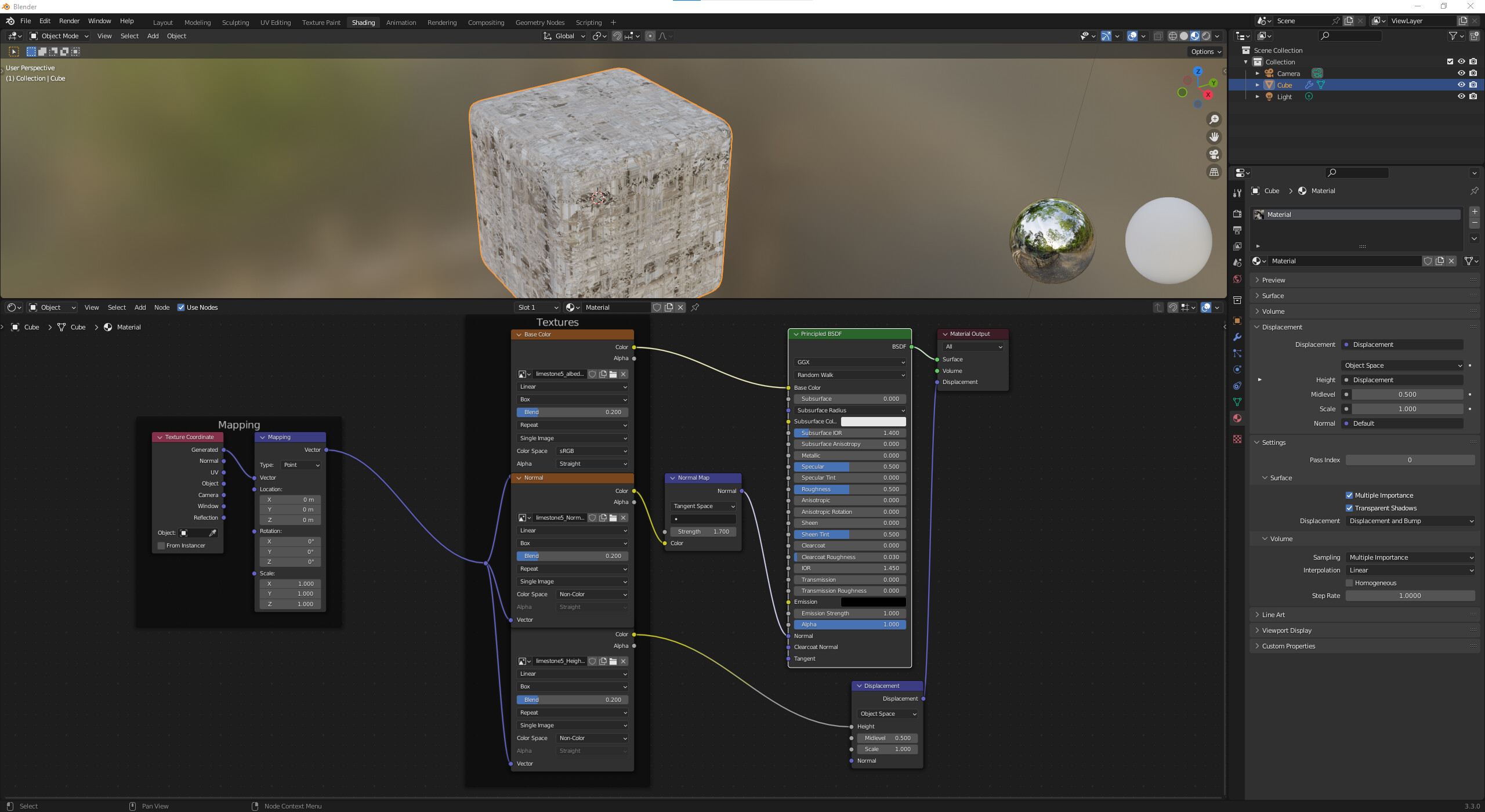
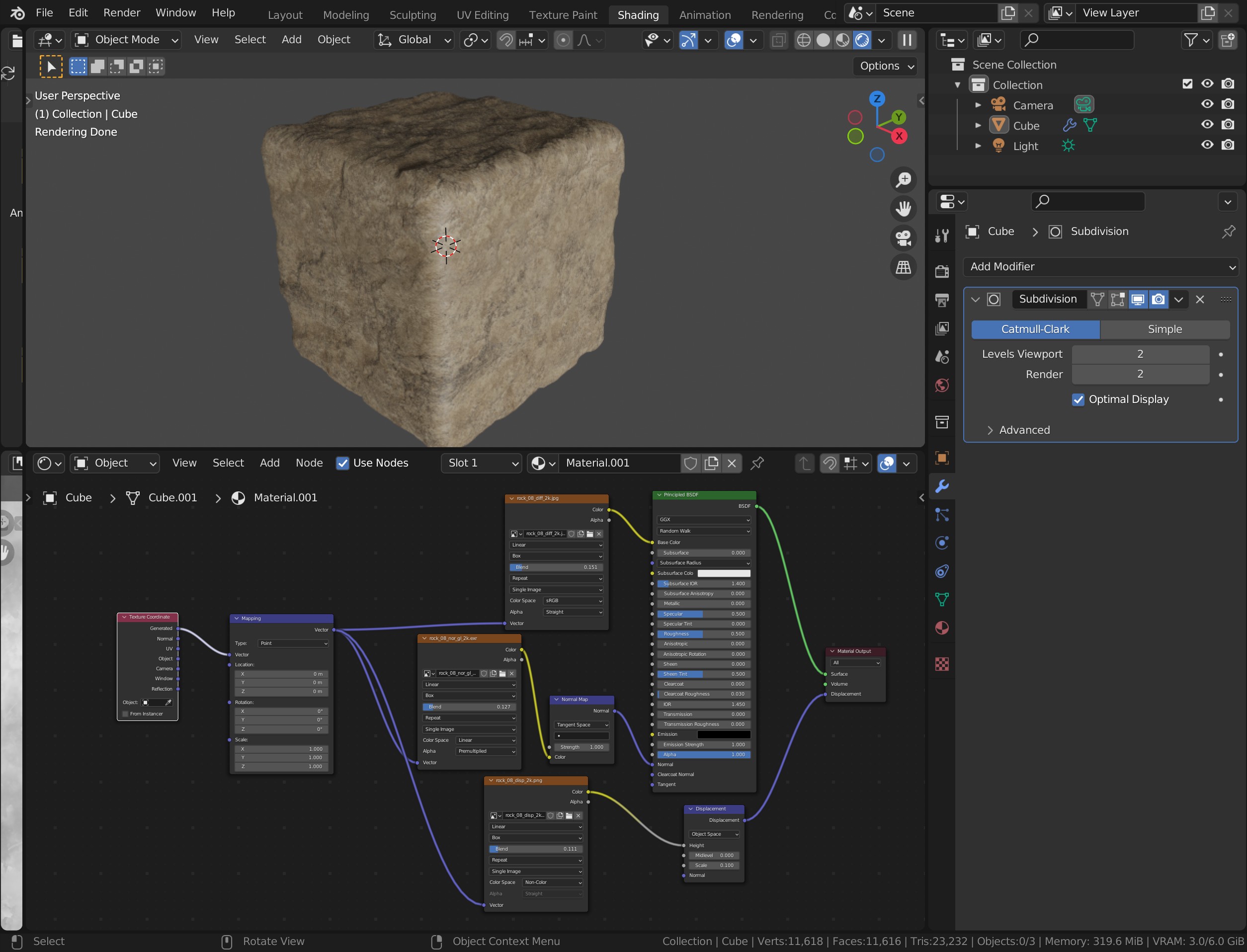
This is me just recreating the problem. This happens whenever I attempt to use a Displacement texture.
The reason I’m using a Texture Coordinate Node is because this is how I always have this problem. I don’t remember if I’ve tried it with a UV Unwrapped model but it should work with both.
The Rounded edges are because of the subdivision surface modifier.
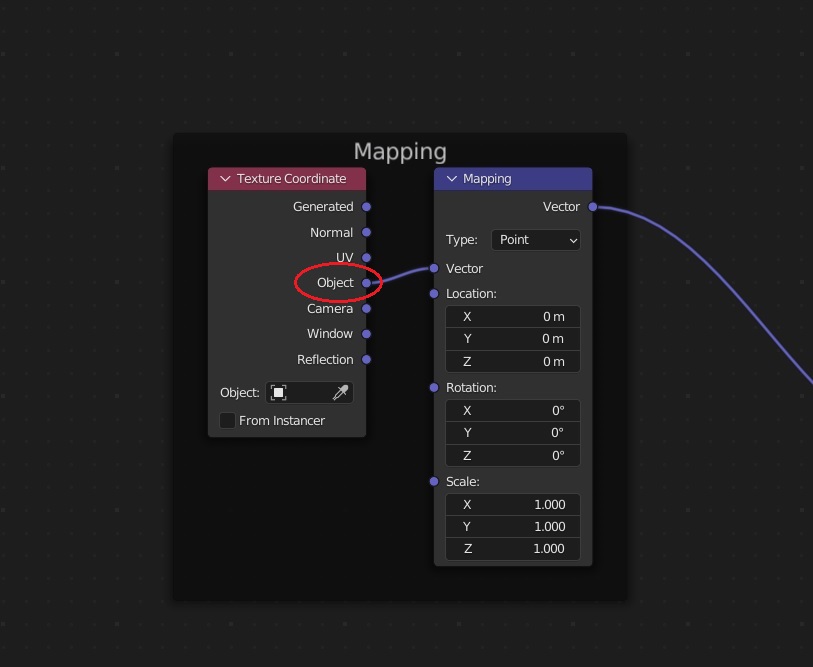
I noticed that you’re using the box project method for the texture. In the shader editor you have the Texture Coordinate node set to “generated” it should be set to “object.” Let me know if this helps and if not, I’ll try to think of more solutions.
Someone else had the exact same issue. Copy of answer I gave there too after some time experimenting.
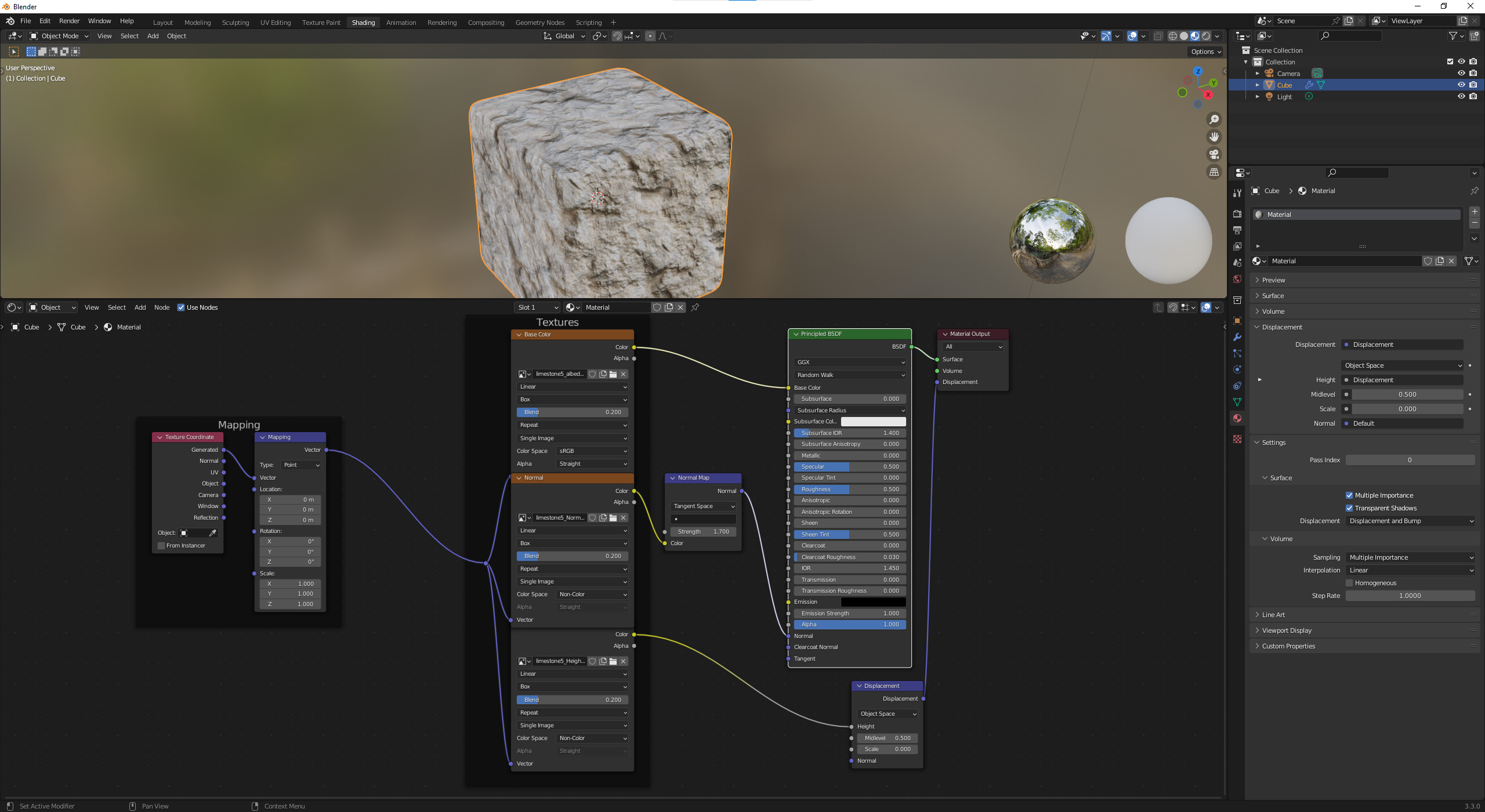
Change the scale in the displacement to zero.
Alternatively 0.1 and 0.2 strength on the normal map node. Just about ok, there is some of the effect but not too noticeable.
Spent some hours experimenting. It did it to the texture I used too.
Not sure about the logic of the scale in the displacement node. However, that put to zero solves it. Midlevel seems not to be involved, or do anything. But there is some relationship or cross use effect with the normal map node.
The problem is I suspect almost no one uses box project, I never have. UVs are standard and normal, easy. It must have its uses in some of these simple game based LP stuff for Grant to be doing it though.