They were working in previous lesson but know they don’t respond.
The couple last lessons were really confusing but I managed to get the same result except for the non working buttons.
Using Unity 2017.1
Any help?
They were working in previous lesson but know they don’t respond.
The couple last lessons were really confusing but I managed to get the same result except for the non working buttons.
Using Unity 2017.1
Any help?
I had the same problem using Unity 2017.1, and I solved this problem by saving my Canvas in the Prefabs folder, deleting this Canvas with its contents from the scene and recreating it in the scene in a different way.
I left the Camera and the Lizard objects same as before.
But for the new Canvas, I set:
Scale X, Y and Z to 1
Render Mode: World Space
Then I copied and pasted the previously created Grass background object into the new Canvas and set its scale to 0.0075, and I created the ‘Win Condition’ and ‘Lose Condition’ buttons from scratch inside the Canvas and also set their scale to 0.0075.
The Core Game panel inside the Canvas I also copied from my previous work into the new Canvas, set its dimensions to 1200 width x 675 height, and scale to 0.0075.
The Canvas should be at scale 1 for X, Y, and Z. And everything inside the Canvas should be at scale 0.0075.
I tried changing the scale of my original Canvas and its objects, but this didn’t work. I actually had to create a new Canvas and new buttons inside it. This was the only way I could fix this problem.
Well, guess what? It still doesn’t work for me.
Which level manager should I put in the button events?
My Prefab folder has a LevelManager object that was created earlier in the course. And this is what I dragged into the OnClick function of the Win and Lose buttons. It’s the same LevelManager object that you have in your 00 Splash scene.
It’s possible to drag the LevelManager script, instead of the prefab object. And this won’t give you any error. But it won’t work. You need to put the object in there, rather than the script.
Well yeah, I did that, and the button still don’t respond… 
It’s possible that your problem might be different from the one I had.
I googled a lot on the Internet, when I was trying to find out why my buttons weren’t working, and I found a lot of other people who had similar problems with other versions of Unity. But they all had a different reason for their buttons not working.
It looks like there are many possible reasons why a button might stop working in Unity, and each reason has its own solution.
Here are some other solutions people have found for their buttons not working:
http://answers.unity3d.com/questions/889908/i-created-an-ui-button-but-click-does-not-work.html
http://answers.unity3d.com/questions/1071055/unity-52-buttons-onclick-function-not-running.html
@ZoidbergForPresident, if you can make your project available for download I will happily take a look for you. Due to the size of the project it won’t upload to the forum (10mb limit), but if you have a Google Drive or DropBox account and want to pop a link on here it may be easier for those trying to help you.
Oh thank you, that would be very nice, here’s the link:
https://drive.google.com/open?id=0Bwet-Fh6Lmf_bzMwand2SUVlTk0
Select your LevelCanvas game object in the Hierarchy and set the Rect Transform’s Scale to the value of 1 for the Z property.
Run the game. If you are happy with the results, update your LevelCanvas prefab to reflect these changes.
Also, be aware that in Lecture 136, when Ben talks about the Shrink to Fit option for the Canvas Scaler, this isn’t available if you have World Space set as the Canvas Render Mode. I think you probably have a different option selected than would be the case in the course.
Updated Thu Jul 27 2017 01:09
If you want to check the course to find reference of this, it is in lecture 131 @ 03:13 where the splash screen is being created. At 03:17 you will note Ben selects the canvas, if you pause the video here the Canvas Render Mode is set to Screen Space Overlay. I believe from this point onwards the canvas is re-used on each scene, as such, when you get to your level scenes, these too would have had Screen Space Overlay as the Canvas Render Mode, and, by default, your buttons would have worked 
Wow, that was quick.
Why didn’t it work with z equal zero? And why does it work if I use a regular (non world) UI?
I don’t understand your last paragraph, about lecture 136: I don’t have the shrink to fit option in the canvas scaler.
In any case, thanks a lot!
There are a couple of articles (if Googled) which indicate that scale shouldn’t ever be zero. Depending on how you personally interpret the scale values, if you think about it, saying it has a scale of zero could suggest that it doesn’t exist couldn’t it - at least in that one axis. I would assume a scale of 1 to be “normal”, a lower value thus being smaller, and a higher value being larger.
When you select Screen Space Overlay as the render mode you’ll note this;
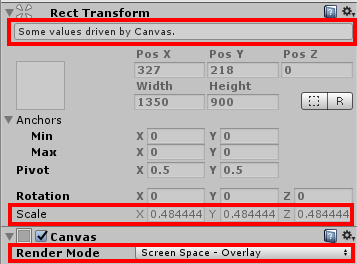
As you can see, you no longer have the ability to edit these values directly, as it states, they are being driven by the Canvas. Whilst the values may be different between yours and mine, you’ll invariably notice that the Z value for Scale is not set to zero - thus, the buttons work! 
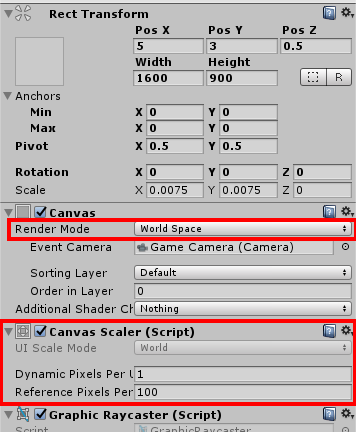
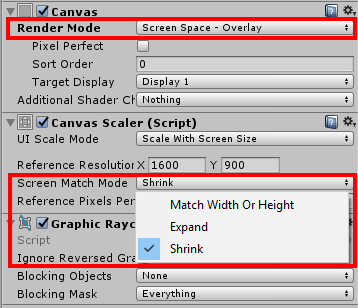
Regarding my last paragraph, what I was suggesting was that I think you have selected a Canvas Render Mode which is not the same as the one in the course, presumably unintentionally. Ben talks about the shrink to fit option, but with the World Space option, you are not given this option for the canvas scaler, so you’d not have been able to follow along directly with Ben in the lecture.
With World Space selected
With Screen Space Overlay selected
ty! u saved my day too
No problem 
And you saved my day too!
Great to gear @Jon_Koivula