I can’t even begin to explain all of the damage that was done by my attempt to follow these directions in the “VS Code Intellisense Fix” class. Contrary to the lesson, I wasn’t getting the red squiggly lines for anything. Now, I just want my system returned to where I see the squiggly lines. I’d rather see too many squiggly lines than no squiggly lines even for valid errors.
So, I disabled vfix and restarted VSCode but that didn’t work. I removed the extension and restarted VSCode and that didn’t work. I uninstalled vfix, restarted VSCode and that didn’t work. I’m at the point of uninstalling Unreal and VSCode but am hoping someone can tell me how to undo this damage before I have to resort to that.
I’m on a Mac, running VS Code 1.55.1, and UE4.27.1. After randomly deleting extensions in a futile effort to return my system back to how it was before that lesson, my current VSCode extensions are C#, CodeLLDB, Live Server, Mono Debug, Prettier - code formatter and Simple React Snippets. No, I have no idea how I got those. I just know that I had the squiggly lines before installing that Intellisense “fix”.
I just added the extension “C/C++ for Visual Studio Code” thinking that maybe I was a bit too enthusiastic while desperately deleting extensions but the squiggly lines are still gone.
How can I undo this damage?
Can you show me the setting for vscode intellisence please
Thank you for responding so quickly. There are alot of settings. I’d be happy to provide a screen shot but of what? Are you asking for the settings of the C/C++ 1.5.1 extension by Microsoft? I found a setting in there for C_Cpp: Error Squiggles, which is set to EnabledIfIncludesResolve. Is that what you are referring to?
There is another suggested extension called “C++ Intellisense” by someone named “austin” but I’m too scared of extensions after this experience to experiment with an unknown extension.
If you click on the microsoft c++ intellisense extension, there will be a cog, click on that and show me the user tab
Or have you unintalled that? Can you screenshot your extension tab and show that to me?
I did remove it but then realized I may have gone too far and reinstalled that extension. My list looks like this:

Here is a screen shot of the User Tab of the C/C++ Extension. There are a LOT of settings so I’d probably need to upload around a dozen screenshots to get them all.
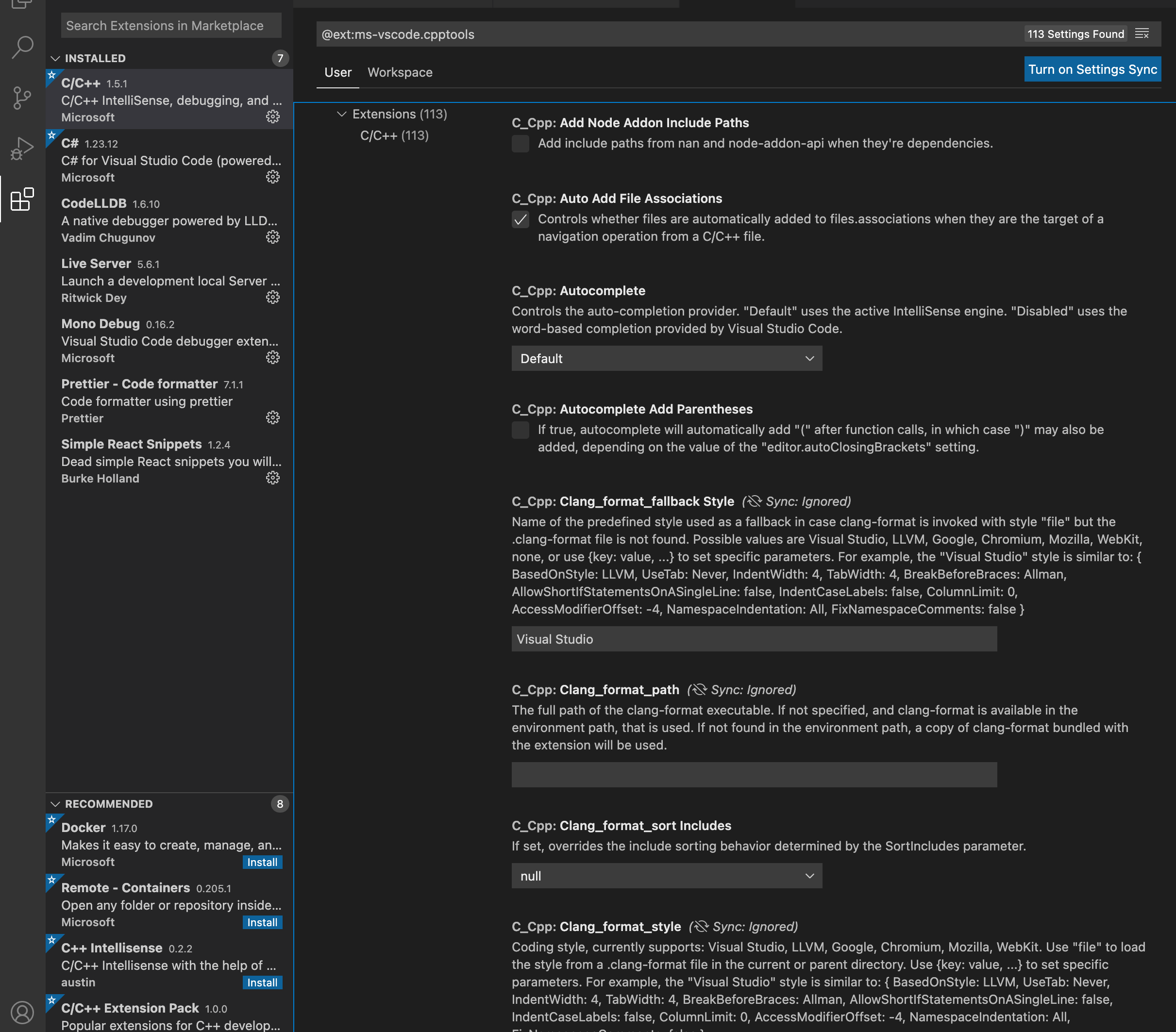
Yeah ok so you have actually removed the extension, did you indtall it off github?
I believe it was suggested in the Recommended section so I just clicked “Install”.
I think I discovered the solution. There’s a “C_CPP: Error Squiggles” in both the User and Workspace tabs. I needed to change the setting in the Workspace tab.
So, does Udemy offer a VSCode 101 course? If so, sign me up because I find this completely baffling.
https://gist.github.com/boocs/f63a4878156295b6e854cac68672f305#Extension-Settings clikc this link and download off here
Then follow the instructions
It looks like that would just reinstall the VSIX that caused the problem to begin with. I think I misunderstood your earlier question. I installed Microsoft’s C/C++ extension from the Recommended list but I followed the course instructions when I originally installed that “VSCode Intellisense Fix” so I did get that from GitHub.
I don’t know what I would do differently if I did it again and I’d rather keep the “unnecessary” squiggly lines than repeat the last few hours of trying to get those “necessary” squiggly lines back. So, I’m going to continue without that extension. I have no idea what went wrong the first time so to repeat that mistake would probably be a sign of insanity.
But, thanks for your help.
I’m afraid that I’m still stuck. After the change from last night, my squiggly lines under the #include statements returned but I still don’t show squiggly lines under errors. So, I completely uninstalled and re-installed VS Code, repeated Lesson 8 “Also Install Visual Studio Code”, and Lesson 42 “Setting Up Code in Unreal.” Still no luck.
I’m attaching a Screen Shot. Note that there are no Squiggly Lines under the errors on lines 9 and 13. Also, the “FString HiddenWord” are not color coded as in the video. And, I have 6 errors including 2 that address disabled squiggly lines but do not provide a solution - at least not one that I understand.

Is there anyway to get past all this? Do you ever do screen shares in situations like mine that appear hopeless?
If you want to go back to before installing the IntellliSense Fixes extension. Remove the extension if you installed it again and then delete the code-workspace file and .vscode folder within your project directory, after doing that use File > Generate Project Files from with Unreal.
Dan, I see the BullCowGame code-workspace but I don’t see a .vscode folder within my BullCowGame directory.
A friend found something on a forum that may help explain some of my difficulties. Apparently, there was a change in 4.27 that can cause these problems. I decided to use 4.27 instead of 4.22 because the instructions implied that anything later than 4.22 would be sufficient. But, in retrospect, perhaps that was a bad decision. The code is still compiling so I figure I’ll just have to manage without the squiggly lines to help identify valid errors.
I guess, like the logs, that’s put somewhere else on macOS. Where does the workspace say the c_cpp_properties.json et al. are? Basically the idea is to delete those files to ensure Unreal regenerates them.
It was changed in 4.25, then again in 4.26, with 4.26.1 finally fixing it. 4.27 broke it again, at least on Windows as the paths used in the command for the “compile_commands.json” were not quoted which meant if there were any spaces in the path used by the command caused issues (they generally would as the default path for the compiler would be in C:\Program Files\....)
This topic was automatically closed 20 days after the last reply. New replies are no longer allowed.