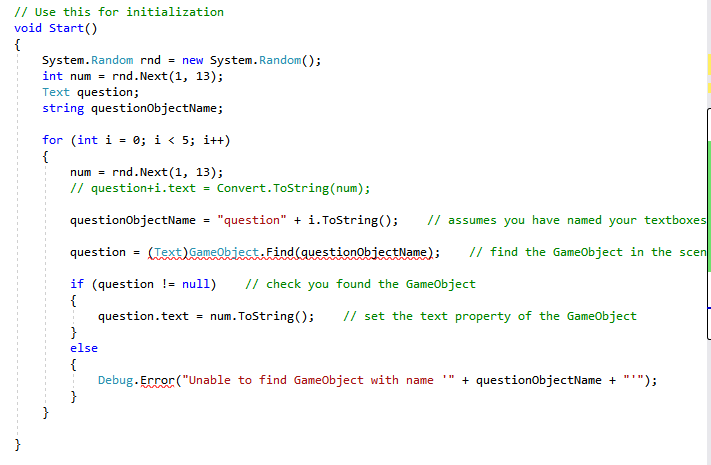
i like to place 10 text box on the stage
i wrote loop:
    for (int i = 0; i < 5; i++)
    {
        num = rnd.Next(1, 13);
        question+i.text = Convert.ToString(num);
    }
whats wrong with this code?
how can i fix it?
i like to place 10 text box on the stage
i wrote loop:
for (int i = 0; i < 5; i++)
{
num = rnd.Next(1, 13);
question+i.text = Convert.ToString(num);
}
whats wrong with this code?
how can i fix it?
That bit, at a guess, but you’ve not provided any error message details or anything, so hard to tell.
Do you already have the 10 text boxes in the scene and you just want to set their “text” property, or, are you trying to create 10 text boxes in the scene and then set their “text” property?
yes i created 5 boxes
this the error massage:
|‘text’ accepting a first argument of type ‘int’ could be found (are you missing a using directive or an assembly reference?)|Assembly-CSharp|C:\Users\teacher\Documents\unity projacts\practice1\Assets\AdvantureManager.cs|34|Active|
Ok, so with the text boxes already in the scene then you have a couple of ways you could proceed.
You could either expose fields in your script to add reference to each of the text boxes, if the number of text boxes isn’t going to change this may be acceptable. Alternatively, you could find the text boxes in code as you need to, but be aware any Find or GetComponent operations will have a performance cost (especially Find).
Let’s assume for now that you’ve not exposed the fields and instead you want to Find the text boxes and set their text… it’ll be the quickest route to some success but definitely something you will want to review.
You could do this;
public void Example()
{
    Text question;
    string questionObjectName;

    for (int i = 0; i < 5; i++)
    {
        num = rnd.Next(1, 13);
        // question+i.text = Convert.ToString(num);

        questionObjectName = "question" + i.ToString();    // assumes you have named your textboxes "question1", "question2" etc

        question = (Text)GameObject.Find(questionObjectName);    // find the GameObject in the scene

        if(question != null)    // check you found the GameObject
        {
            question.text = num.ToString();    // set the text property of the GameObject
        }
        else
        {
            Debug.Error("Unable to find GameObject with name '" + questionObjectName + "'");
        }
    }
}
This is obviously a bit lengthy and you could tidy it up, but perhaps get it working first, then look to improve upon it.
Remember, you will need the following directive at the top your script if you want to use reference UI objects in code;
using UnityEngine.UI;
My apologies, I mixed the types up in that example…
Here you go, corrected version… 
public void Example()
{
    GameObject question;
    string questionObjectName;

    for (int i = 0; i < 5; i++)
    {
        num = rnd.Next(1, 13);
        // question+i.text = Convert.ToString(num);

        questionObjectName = "question" + i.ToString();    // assumes you have named your textboxes "question1", "question2" etc

        question = (GameObject)GameObject.Find(questionObjectName);    // find the GameObject in the scene

        if(question != null)    // check you found the GameObject
        {

            question.GetComponent<Text>().text = num.ToString();    // set the text property of the GameObject
        }
        else
        {
            Debug.LogError("Unable to find GameObject with name '" + questionObjectName + "'");
        }
    }
}
You could of course make this a little tidier and better performing…
Instead of Finding the GameObjects, lets create an array to hold their references and then drag them in via the Inspector, here’s an example script;
using UnityEngine;
using UnityEngine.UI;

public class Quiz : MonoBehaviour
{
    [SerializeField]
    Text[] answers;

    [SerializeField]
    private int min;

    [SerializeField]
    private int max;

    private void Start()
    {
        InitialiseAnswers();
    }

    private void InitialiseAnswers()
    {
        foreach (Text answer in answers)
        {
            answer.text = GetRandomNumber().ToString();
        }
    }

    private int GetRandomNumber()
    {
        return Random.Range(min, max);
    }
}
Attach this to a GameObject in your scene, perhaps one called “Quiz” for example.
Now, with the GameObject selected, in the Inspector you should see the following;
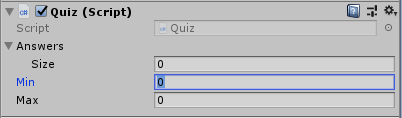
For the Size property, set it to the number of UI Text objects you have, e.g. 5 and you’ll see it creates 5 elements ready to receive their GameObject references;
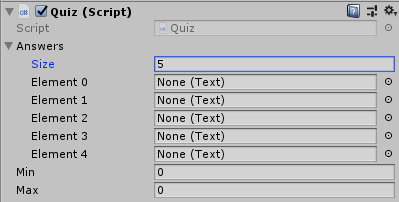
Set your Min and Max values accordingly, e.g. 1 and 13;
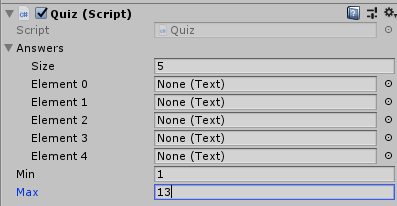
And finally, drag each of the UI Text GameObjects into one of the elements, I named mine as “Answer 1”, “Answer 2” etc in the Hierarchy;
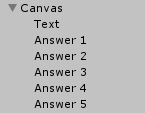
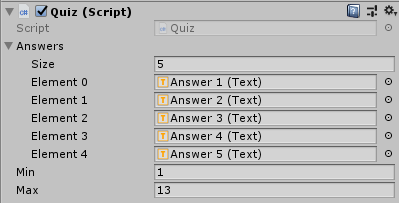
Now run your game and you should see the text value of each UI Text GameObject update to a random number between 1 and 13 (exclusive).
Hope this helps
See also;
Thank you
it is working
You’re very welcome.
I moved your posts to this new topic as it was about a specific thing and easier for the replies etc.