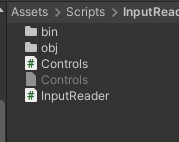
since Friday, September 12th, I’ve been having a problem with Visual Studio Code and its latest update. It makes my game’s older scripts incompatible. I get this error message when I edit the InputReading script to create the cancel and inventory events in Brian’s Git Hub for switching to third person.
Am I the only one? Any ideas on what I need to do?
I’ve the same problem with all my scripts of all my project…
Here is my error message when I update my scripts:
Assets\Scripts\InputReading\obj\Debug\net10.0\InputReader.GlobalUsings.g.cs(6,1): error CS8773: Feature ‘global using directive’ is not available in C# 9.0. Please use language version 10.0 or greater.
Without knowing your code, I’m afraid it is difficult to help you with this problem.
According to the docs, Unity uses C# 9.0. However, since I do not know in which course and lecture you are. Maybe the instructor told you to use C# 10?
This particular error pops up when you use a statement like
global using MyNameSpace;
anywhere in your project instead of using
using MyNameSpace;
That the message is popping up on InputReader is odd, since in my tutorial I do not use global namespaces (the idea behind a global namespace is you use it once in your project and you don’t have to put that using in every script… bad practice, IMO). That would seem to indicate a possible bug in the extensions.
Was this also affecting Unity’s ability to compile? (i.e. was Unity throwing the same error as Visual Studio Code)?
After many tests I ‘m arrived to a strange observation.
If I open your project in the hub, open the InputReading script, copy paste the code in lesson 22 of the GitHub, the bug appears.
If I only add manually the new line, everything goes fine…
Don’t ask me why but you can test
Copy paste the code here in your “final” InputReader script, I ‘ll say you you haven’t any implementation for shop and Dialogue (normal), add them and if you save, you will have my bug.
I keep on with the manually method
Bye
François
Edit.
In fact, I still have the problem…
It’s now with the InventoryWindow.cs Script…
Assets\Scripts\UI\Inventories\obj\Debug\net10.0\InventoryWindow.GlobalUsings.g.cs(2,1): error CS8773: Feature ‘global using directive’ is not available in C# 9.0. Please use language version 10.0 or greater.
Again the two new folders are created…
I delete them and keep on but I think it’s a degraded mode…
I tried pasting in the script from the tutorial into the project directly and did not encounter the error either in Rider or Visual Studio Code.
I just looked again at the directory in the error message and I’m stumped… there shouldn’t be an obj directory, let alone a net10.0 directory in the project. Something’s going on with your Visual Studio Code installation, methinks.
again… is this error still happening within Unity itself as well, or does it compile within Unity?
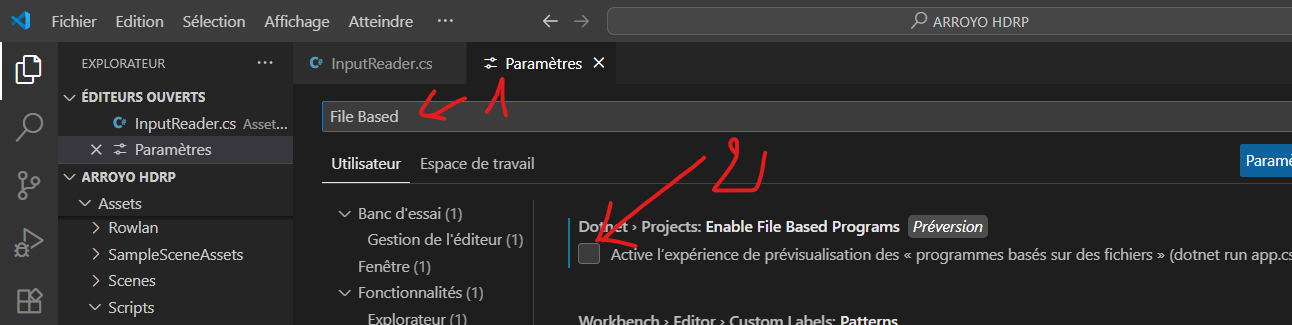
Ok, one of our other TAs has found a thread on this issue. It’s likely that you’re using a pre-release version of the C# Dev kit. Reverting to a release version should do the trick.