Need Help: Speedy Sauser

My code is supposed to reset the ceane only when the spaceship leaves the track, but it seams to reset within the track when I go too fast as well. And whenever I run it, the debugger spits out

“Warning: The parameter “body” is never used in the function " on_a _maz_eing_body_exited". If this is intended, prefix it with an underscore: " body".

GDScript Error: UNUSED_PARAMETER

GDScript Source: level.qd:7“

and this does not rectify when I underscore “_body“.

in addition, when the code resets the debugger spit out

“Error: level.gd:8 @ _on_a _maz_eing_body_exited): Removing a CollisionObject node during a physics callback is not allowed and will cause undesired behavior. Remove with call deferred() instea

C++ Source: scene/2d/physics/ collision_object 2d.cp:98 @ _notification0

Stack Trace:

level.gd:8 @_on_a_maz_eing_body _exited!)“

I never told it to remove anything! All the code is identical to the teacher’s, and he never addresses the problem.

The code in question.

extends Node2D

# Called when the node enters the scene tree for the first time.

func _ready():
pass

func _on_a_maz_eing_body_exited(body):
get_tree().reload_current_scene()

Additional code that might be the problem, but I doubt it.

extends RigidBody2D

var force = 620

func _ready():
var addition_result = add(10, 5)
print(addition_result)

func _physics_process(_delta):
if Input.is_action_pressed(“move_right”):
apply_force(Vector2(force, 0))
if Input.is_action_pressed(“move_left”):
apply_force(Vector2(-force, 0))
if Input.is_action_pressed(“move_up”):
apply_force(Vector2(0, -force))
if Input.is_action_pressed(“move_down”):
apply_force(Vector2(0, force))

func add(No1, No2):
var result = No1 + No2
return (result)

Thank you for helping.

Warnings appear in yellow and can usually be ignored if you don’t want to fix them - they’re only meant to make you aware of something that you might not have intended to do. Errors appear in red and generally (but not always) need to be addressed.

“I never told it to remove anything!”

Not directly, but this happens when reloading a scene. It isn’t like a chess game, where resetting the game board involves grabbing all the existing pieces and putting them back in their starting places. Instead, everything gets completely destroyed (removed), and completely reinstantiated.

This error explains that attempting to remove a collidable object (in this case, during a scene reload) in the middle of the frame’s physics calculations will interfere with said calculations, and you therefore need to defer reloading the scene until after the frame’s calculations are finished. “Between frames,” if you will. Not doing that causes unpredictable and chaotic behaviour that generally looks like the other symptoms you’re describing, so this should fix everything.

When the course was recorded, reloading and changing scenes was deferred automatically internally, but this is no longer the case since 4.2. As a result, replace this:
get_tree().reload_current_scene()
with this:
get_tree().reload_current_scene.call_deferred()

Throughout the course, you will need to do this for every use of reload_current_scene(), change_scene_to_file() and change_scene_to_packed(). They all underwent the same change.

Also, in future, if you need to post code here, it’s helpful to put it in a codeblock with the </> button in the toolbar (same applies when using the course Q&A). That will preserve its formatting so it’s easier to read. It’s particularly important for GDScript since the indentation gets lost otherwise, and you’ll learn later that indentation or lack thereof can, all on its own, change the meaning of your code sometimes.

2 Likes

I did as you said, and it only seemed to make the code lash out more. However, the debugger spits out a much shorter message,

reload_current_scene: Parameter “current_scene“ is null

and I don’t know what to make of it.

Thank you for helping me!

Can you post some screenshots of your Script Editor with the script and error message? Not typed out manually or copied and pasted, but screenshots. I’d like to see exactly what you have and what the engine is showing you, reason being I already know this syntax works and reload_current_scene() doesn’t have a parameter, so something’s not right.

Here you go.

And thank you for hellping me again!

Sure thing!

Ok, that makes more sense - current_scene is a member of the SceneTree itself, not actually a parameter of the function (at least not in GDScript). These terms will make more sense to you later in the course, but basically what it means is that current_scene, which this error is saying is null, is something that belongs to the SceneTree as a whole, and not just to the reload_current_scene() function. Error messages can sometimes be misleading and cryptic, even for those who are used to reading them =)

It looks like reload_current_scene() is being called early for some reason, before the scene is actually ready, but I can’t tell from here why that would be. A quick test on my end suggests that even if that’s true, the engine should gracefully recover and the game would work anyway.

The prime theory at the moment is that there’s something wrong with the scene design itself, so I’d like to have a look at your project directly and dig into what’s going on. You can upload the project here as a zip file: https://gdev.tv/projectupload

Just in case you don’t know, I will need the entire folder that contains your “project.godot” file (it’s literally called that; it’s not named after the project itself).

1 Like

Sorry, I lack the knowlage to find the folder, can you please help?

Thanks.

No problem. When you first start the engine, you will see the Project Manager, where you would select your Speedy Saucer project to edit it. On the bottom of that bar, you will see the location you need to go to in your file explorer (“This PC,” “My Computer,” or whatever else your OS calls it).

You won’t be able to just copy and paste that, but you don’t need to close the engine, so it will be easy enough to go back and forth and make sure you’re going to the right spot.

When you are in the correct folder, you will see a file named “project.godot.” Go up one level, right-click on the project folder you just came out of, and zip that.

i’m sorry i took so long, i had many papers to write and could have only gotten back now.

Also, when i tryed to put the folder in, the chat wouldn’t allow it. any other idea?

thank you.

Life gets in the way, that’s perfectly fine.

Check the previous posts in this thread. You don’t drop the folder here on the forum; you need to zip the folder, then upload the zipped archive at the link provided.

How do you “zip?

As you can see, I have already indicated that you need to read the previous posts in this thread, where I provided detailed instructions, with screenshots, explaining and showing exactly what you need to do.

If even this isn’t enough however (and who knows, maybe it isn’t), then I’d recommend reading/watching something online to learn about zip files - what they are, how to create them, and why they’re used. It’s a technology that’s been around forever in one form or another and it’s used in lots of different contexts, not just game development, so it will be well worth your time and effort to look into it.

Thank you for helping ol’ Granny here. The zipped folder is just below.

Here it is!

It has been so long that I forgot you asked me to put the folder in a website. Silly me!

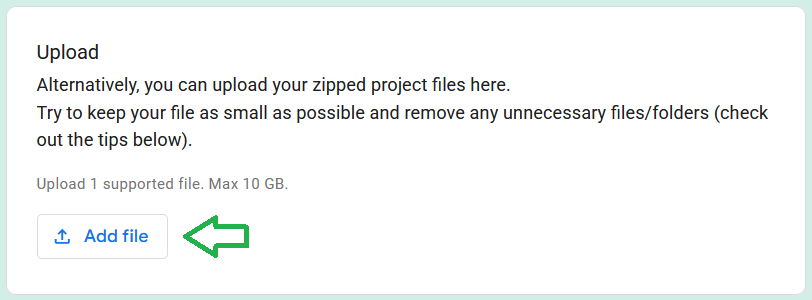
Well, we’re getting there. I received the support form, but unfortunately, you submitted it without actually attaching your project. You’ll need to send another one; when you do, remember to click here to add the zip file:

Thank you again for both your help and your patience.

Sure thing, that’s what we’re here for.

You almost got it. Let me quote this part again for convenience:

You managed to find the project.godot file, and I received that. To clarify, what I need is not the project.godot file itself, but the entire folder that it’s in.

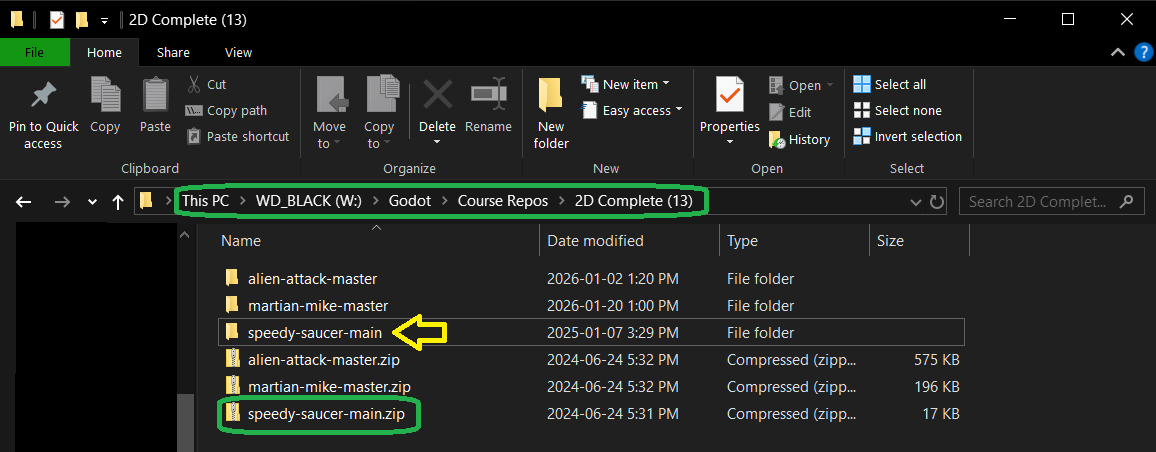
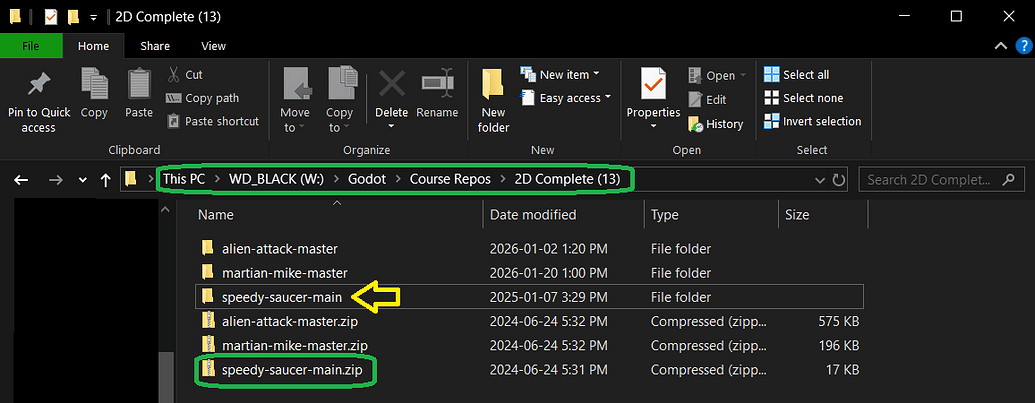
Whatever you have named your project, you’ll see a folder for it, just like the one my yellow arrow is pointing to. When you zip that folder, you end up with a zip file like the one I’ve circled in green, and that’s what I would need. Look carefully in that green circle and you’ll see that the name of the zip file ends with “.zip”, which will happen automatically when you do this too. That’s something you can check for to help you see if you’re on the right track.