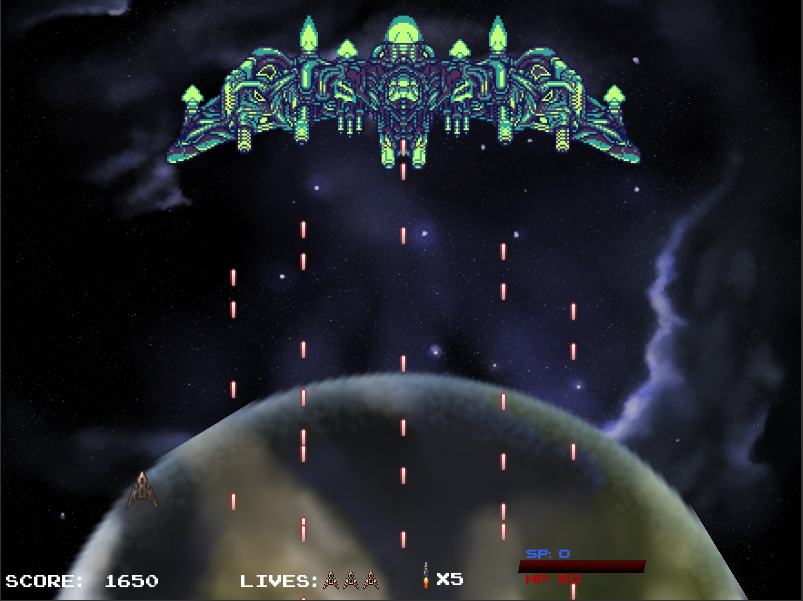
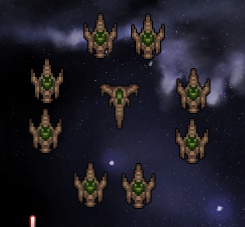
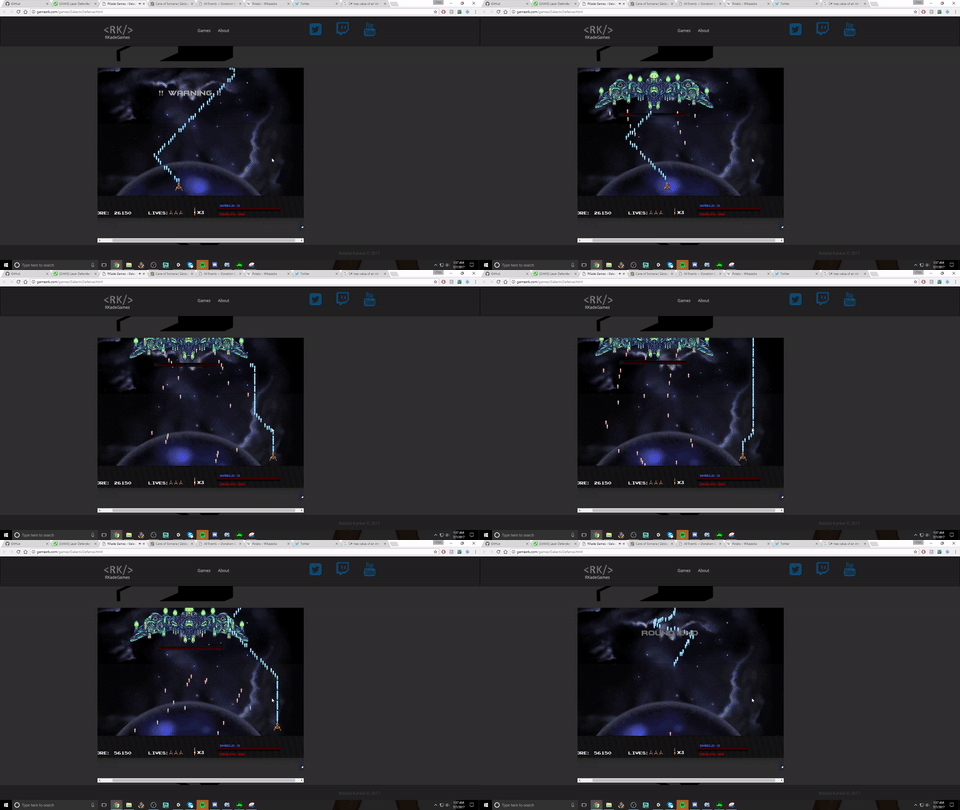
Wowza, that was pretty awesome! The animations are sweet and I really like the bosses, how did you get the little ships to circle around the boss like a shield?
Tagging @agentosage jic you didn’t see my earlier reply on the circling animation =P
@EpicArcher79, Yes I’m been a programmer for the last 4 years just using a different language. (Python to be specific)
To answer your question its all animations, no random behavior. Getting it to feel like random behavior just took multiple tweaks. Looking closer it appears to be an 8 second long animation for the “Wandering” pattern. I manipulated the transform’s position and Unity’s built in tweening did the rest.
I love the idea for a power-up shop. I’m looking forward to the twin shooter tutorial to start making really polished games!!
Great Job! I love the sprite and core game play loop, as well as the backdrops and narrative approach.
Recommendations if you want to continue working on the build:
Perhaps let the player know how to fire rockets. (Affordance)
Love the auto-blast-off to next level. Consider having power-ups not spawn from final enemy OR not blast off until enemies AND power-ups are off screen.
The boss on the next to last level might benefit from visual cues of damage (Similar to Block Breaker destruction cues)
Also, this may be Working As Intended, but that level does not require that you clear the additional enemies besides the boss to progress.
Maybe the Final boss could have a means (like rockets of sweeping lasers) of pushing the player through the middle to dissuade from riding it’s edge
It’s very inspiring when people comment and make suggestions so I’ve been working on more features. Here’s a quick 1-minute video of the changes made so far: https://youtu.be/yXyMa7B04mg
Features:
Tutorial
RPG Style Text
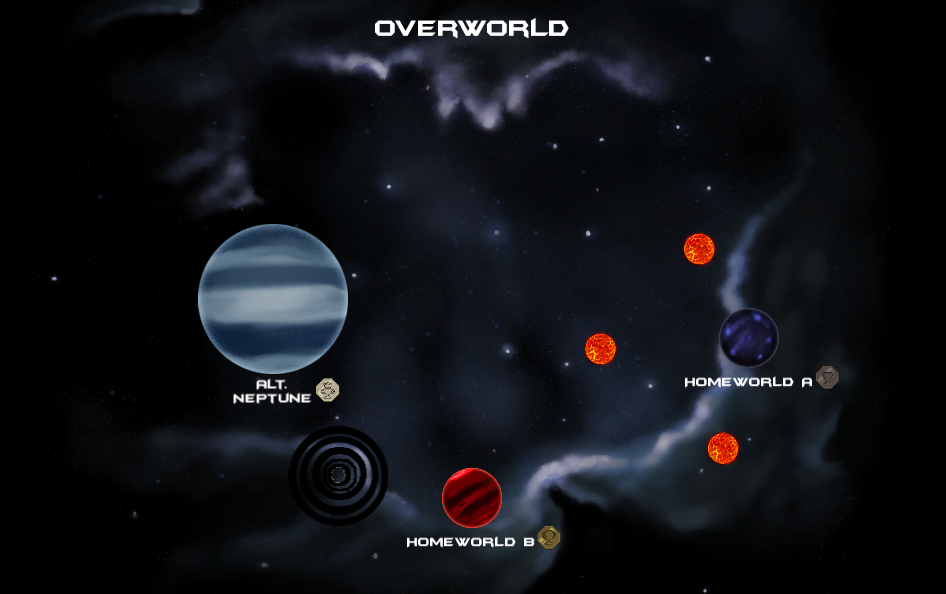
Over-world for level selection
Medals showcasing level ranking
Enemy Health-bars
Subtle background animations (Still working out how best to approach this)
Future Updates:
Shop
Ship upgrades
Tougher Enemies
I plan on uploading the final version to the showcase, but would also like to finish the twin stick shooter portion of the course as well
Amazing job. You put way more effort into making a game than I did.
There is a bug in your game that allows the player to fire faster than the fire rate. You are using something like the line in the course to allow the player to hold Space to fire at a rate. But if the player just presses Space they can fire faster. Where is a gif of me killing the final boss in ~6 seconds.
I did use my macro-enabled keyboard, but you can see the issue. Try something like:
What I did was create a float ‘lastfire’ and add up Time.deltaTime into it. Then I put an additional if statement before the InvokeRepeating to ensure the player hasn’t fire sooner than the fire rate I wanted.
This post had another way of doing it using Time.realtimeSinceStartup:
Finally, I was unsure what to do after killing the final boss. The game didn’t go to a win screen or anything. I could just go replay all the levels again. Is that intended? Given how quick I killed the boss I thought there might have been trigger that was missed because I killed the boss before it spawned some other gameObject.
I Am really struggling with something for a while, you may be able to help me. I am trying to load a player animation after a event (wave finish for example, similar to what you did). The problem is: I cant figure out how to do that by code. Should I use animation load? animation clip ?
They way I eventually understood the situation was this:
A GameObject should only have 1 animator
A GameObject can have multiple animation clips
What you’ll need to do, is in the player’s class, create a class variable and save the GetComponent < Animator > () object as a private variable with mutators or leave it as a public. Then in the Awake() method have something similar to GetComponent < Animator > ().enabled = false;
This way the animation won’t play on awake.
Now you have control over the player’s animator which allows you to do something similar to GameObject.Find(“Player”).GetComponent < Animator > ().enabled = true; in LevelManager on level load or wherever you prefer the animation to be kicked off.
If you have multiple animation clips you should also set that after enabling the animator component.
GetComponent < Animation > ().Play(name);