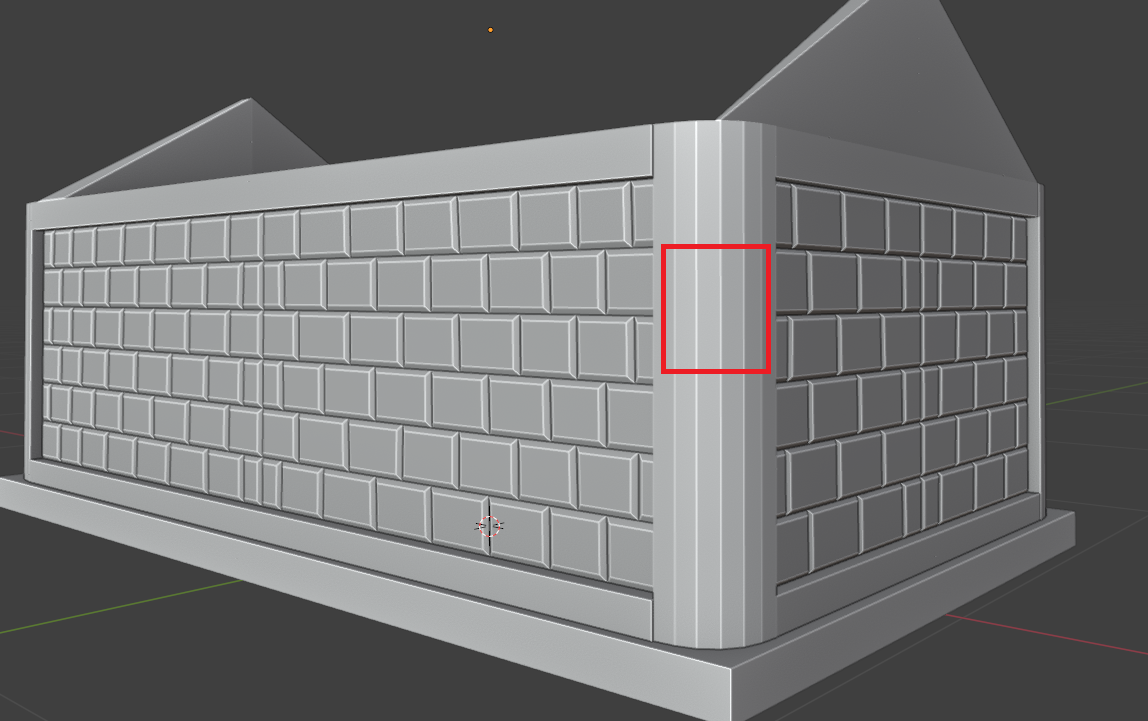
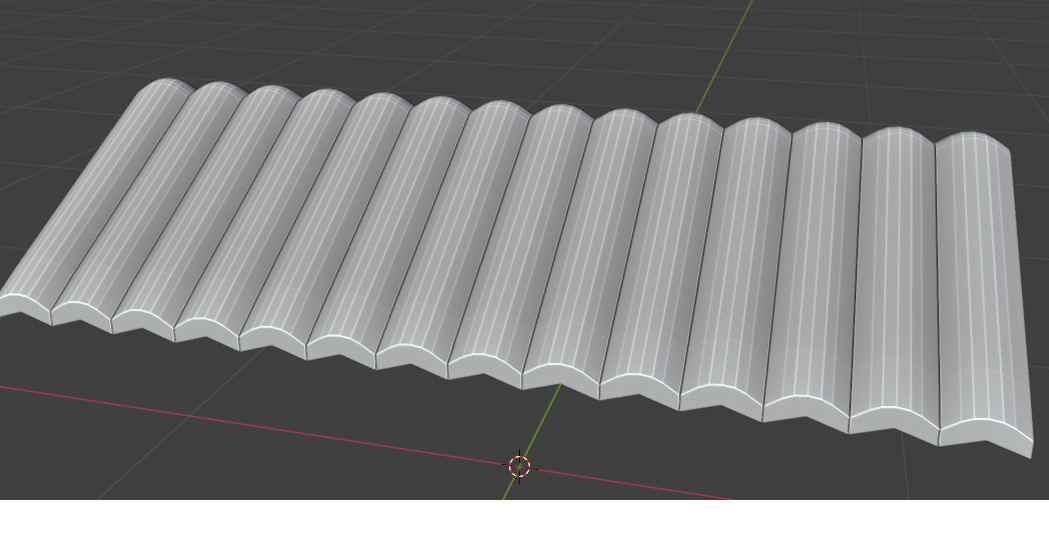
so, i am making a house, and i tried to use bevel to give a smooth look. As you can see that beveled edges can be seen in object mode, what could be the reason?
3 Likes
Probably you’ve used accidentally a hot-key combination, which switches on this feature.
I know you can, but I also don’t know where to do this.
But AI has maybe an answer:
To display the edges of a mesh while in Object Mode in Blender, follow these steps:
- Select your object in Object Mode.
- In the Properties panel , go to the Object Properties tab (the orange square icon).
- Open the Viewport Display section.
- Enable the options Wireframe and/or All Edges :
- Wireframe : Shows the object’s wireframe over the solid view.
- All Edges : Displays all edges of the mesh, not just the outline61.
This will make the edges visible on your object even when you are not in Edit Mode. These settings are especially useful for seeing detailed mesh topology or for a “blueprint” style view61.
Add to follow-up
Citations:
- https://blender.stackexchange.com/questions/194/how-to-display-the-edges-of-a-mesh-while-in-object-mode
- Visible Edges in Object Mode - Basics & Interface - Blender Artists Community
- https://www.reddit.com/r/blenderhelp/comments/186c26m/edges_in_object_mode_and_not_edit_mode/
- https://www.youtube.com/shorts/YG6K7plbL0Y
- https://www.youtube.com/watch?v=HDR13n6nD3o
- Viewport Display — Blender Manual
- Object Modes - Blender 5.0 Manual
- Edges in object mode - Basics & Interface - Blender Artists Community
- https://cgcookie.com/community/12174-topology-problem-weird-lines-on-object
Answer from Perplexity: https://www.perplexity.ai/search/magic-polymeric-powder-to-make-epVaKQMoS_SvBNHO1bCI9g?utm_source=copy_output
2 Likes
its not that actually, wireframe option was not ticked, when i ticket it, i can see something like this.
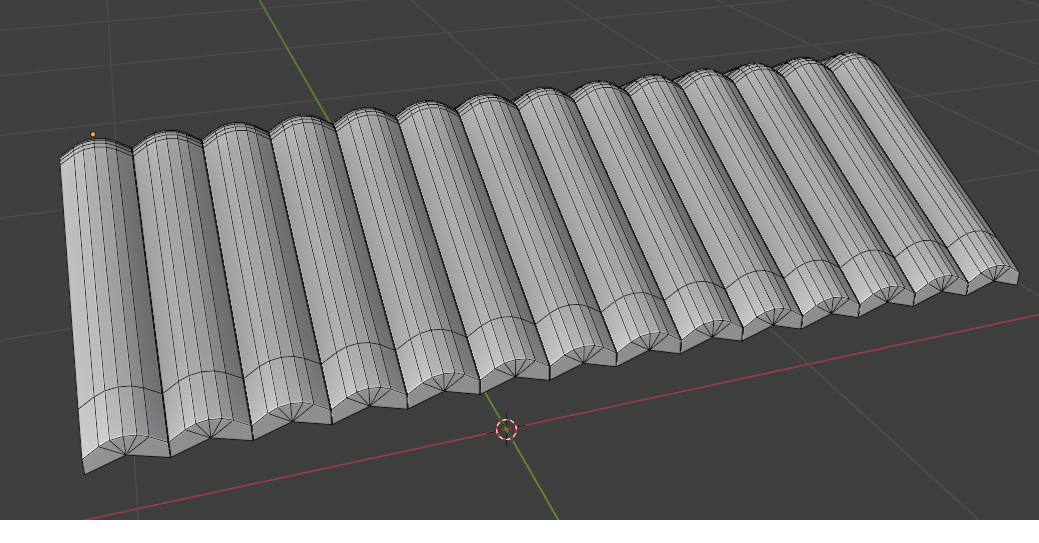
2 Likes
Ahh, I think, you’ve activated the option to ‘Highlite’ the edges.
maybe this will help:
If your edges are highlighted in white (or another color) and appear in a “highlight” mode in Blender, it’s likely due to special edge markings such as “Mark Sharp” or similar features. To reset this and return the edges to their default appearance:
- Enter Edit Mode (
Tabkey). - Switch to Edge Select mode (
2on the keyboard or the edge select icon). - Select all edges (
Akey). - Right-click and choose Clear Sharp from the context menu, or press
Ctrl + Eand select Clear Sharp from the Edge menu145. - Return to Object Mode (
Tabkey).
This will remove any “sharp” markings that cause the edges to be highlighted in a special color. If you had “Sharp” overlays enabled, you can also toggle their visibility in the Show Overlays dropdown in the viewport1.
If the highlight is due to another feature (such as creases, seams, or custom normals), similar steps can be followed: select all, then use the appropriate “Clear” option (e.g., Clear Seam, Clear Crease) from the Edge menu.
Summary:
To reset highlighted edges, clear any special markings (like “Mark Sharp”) in Edit Mode using the Edge menu. This will restore the default edge appearance in Blender.
Add to follow-up
Citations:
- https://www.reddit.com/r/blenderhelp/comments/mpwj3c/the_edges_are_green_in_edit_mode_how_do_i_return/
- Blender 4.0 Default change: Edge highlighting. - Feedback - Contributing to Blender - Developer Forum
- https://blender.stackexchange.com/questions/302080/how-can-i-highlight-better-the-edges-i-select
- https://www.youtube.com/watch?v=zCP09Y0XuhY
- https://www.youtube.com/watch?v=CdHXpHPWKYo
- https://www.youtube.com/watch?v=Mq6ZEuxicek
- Right-Click Select — Blender Community
- https://www.youtube.com/watch?v=0YP4N9UcZsk
Answer from Perplexity: https://www.perplexity.ai/search/magic-polymeric-powder-to-make-epVaKQMoS_SvBNHO1bCI9g?utm_source=copy_output
2 Likes
I’ve had a similar issue with bevels from time to time after the latest Blender updates. I didn’t find a 100% fix, but toggling on and off some modifier options like Harden Normals, Sharpen Edges, and Keep Sharp fixes it. Also, try changing the angle of the Auto Smooth modifier setting; sometimes that causes a similar problem, too.
The roof tiles seem like they might have double geometry, but that look could also just be due to the low resolution of an image, so I might be wrong.
2 Likes
Ugh replied to FedPete not you, miss click.
1 Like
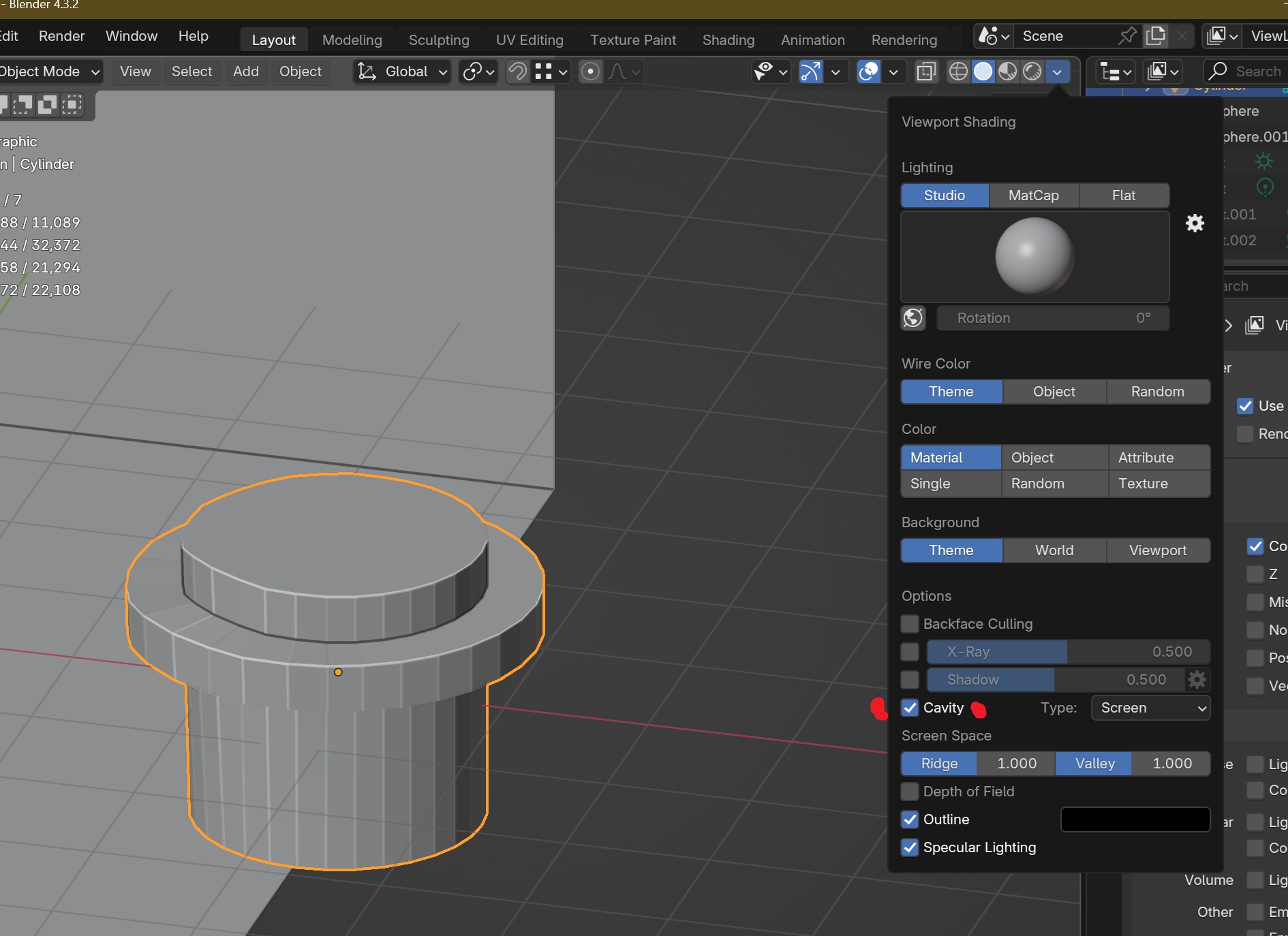
yes it was cavity, i think it was ticked by default.
3 Likes
I suspect some accidental click or there may be some unknown shortcut that does it. As it is not on by default. But all good we found the problem!
1 Like
This topic was automatically closed 24 hours after the last reply. New replies are no longer allowed.