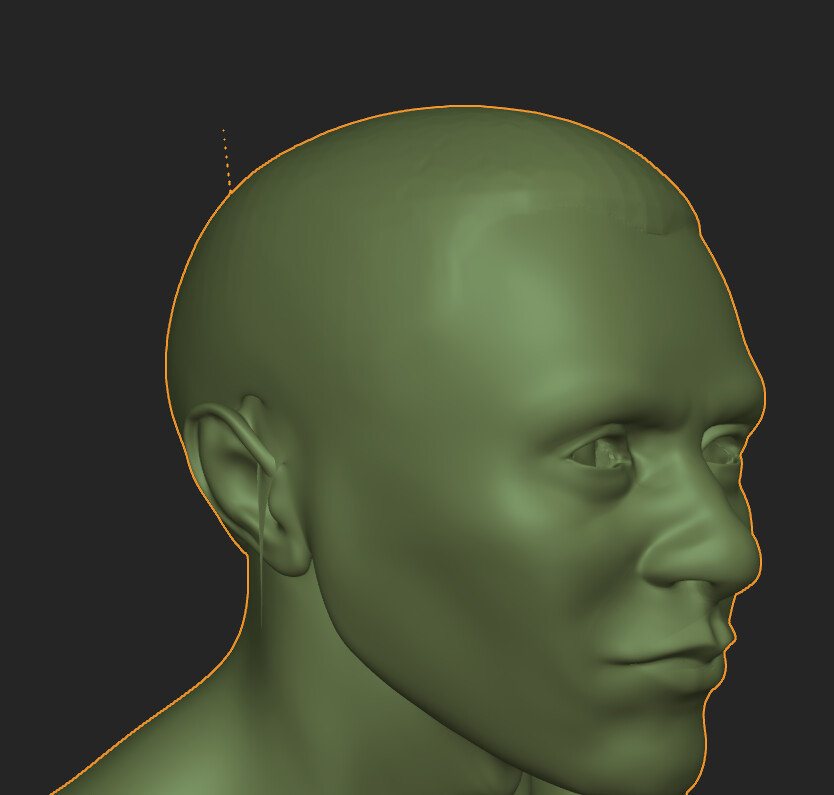
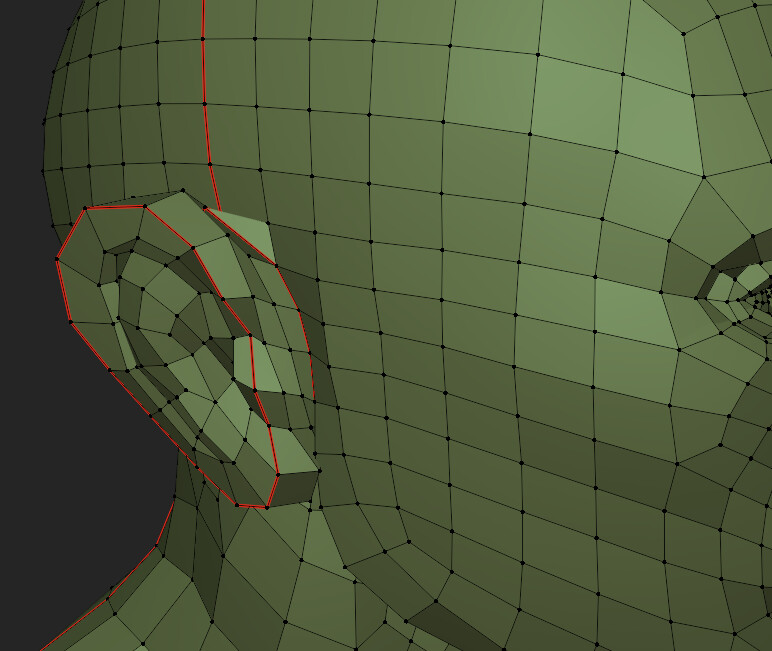
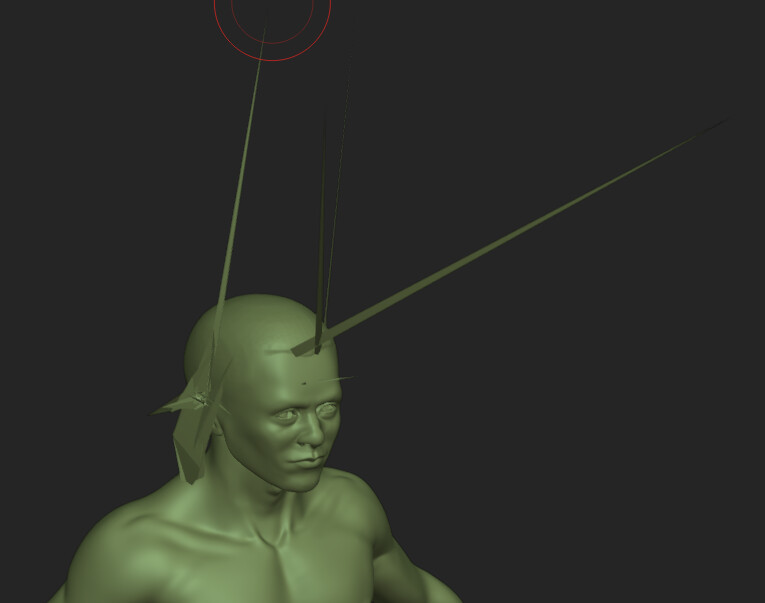
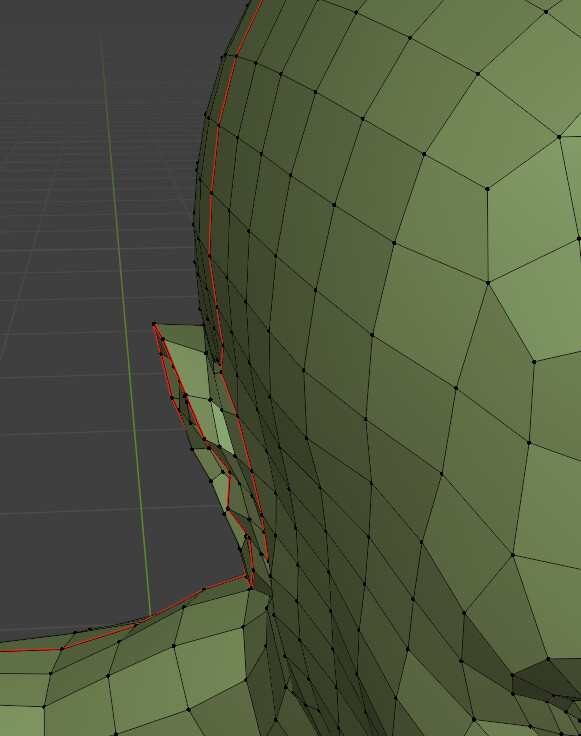
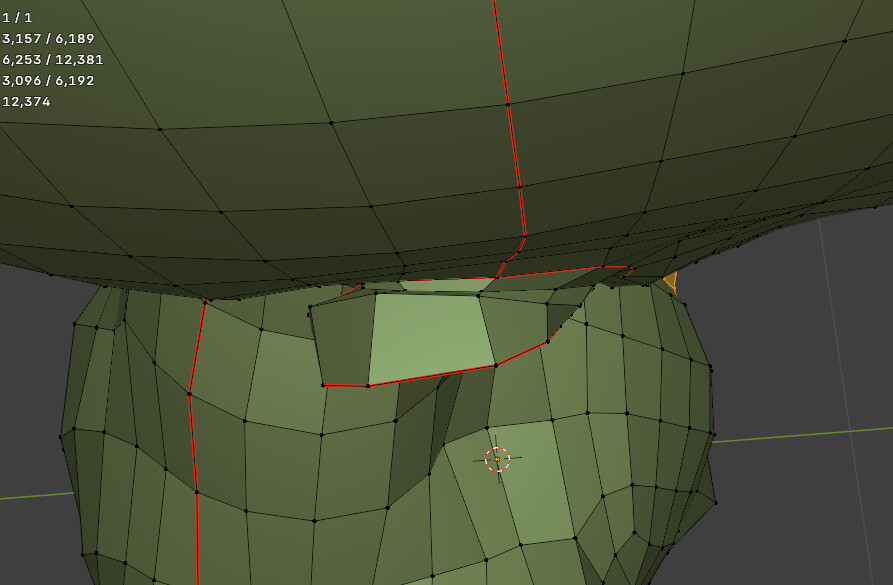
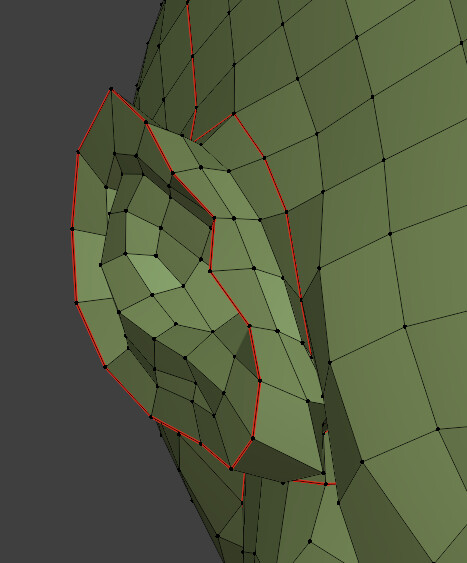
I have tried smoothing these out, and re-sculpting the area, but there are a few places on my mesh where the geometry is too close together and sculpting with the modifier causes artifacts whenever I touch those areas. This is a sculpt I would like to keep but I don’t know how to fix the problems below.
It seems like an easy enough fix in edit mode, but when I move any vertices around, the artifact problem is only worsened once I turn the modifier back on.
I tried smoothing the area but it doesn’t fix the caved in part.
Pls halp, I am loving this course (and this sculpt) otherwise.
I duplicated the mesh, removed the multi res modifier, and remeshed the clone. There were no holes in the remesh - I think this means the mesh is confirmed to be closed? But not sure.
I went back to earlier steps in the modifier, but every time I smoothed out step 1 and went on to step 2, when I went back to step 1 it was messed up again. Sometimes doing any commands, even applying the shape to the base mesh, generates new artifacts that I just finished smoothing out.
I am really happy with this detailed sculpt and spent some hours on it, so I am reluctant to start this step from scratch, but this has had me stuck for a while and everything I try seems to make the problem worse.
I am wondering if it would be faster to just delete the modifier, improve the base sculpt, and then start the detailed sculpting over. It depends a little on how likely that it is to resolve future problems. If I improve the underlying mesh so that the geometry is not so crowded, is that likely to prevent these problems on the next round?
Yes, non-manifold. There is a Blender plug-in for 3D printing. It has a feature (button) to check if the model doesn’t have any holes. For 3D printing this will lead to an error.
Spikes in multires happens.
Did you try to remove vertex doubles in lower res of the mesh in the multires?
You could use the high resolution of the multires modifier and apply it.
Then fix the spikes manually.
Hard to tell from one image but it might be the shape at the top of the ear and where it joins the head. What looks like a triangle may be a severely bent quad. Which may be giving problems to the additional geometry.
On the base mesh also select all and M merge by distance, to ensure there are no doubles.
I did try merging vertices by distance; at .0003 it eliminated 3 verts. No obvious changes to the mesh but I was able to smooth some things out a little bit better later, so maybe that helped.
I get that these types of artifacts happen. What I don’t know is what to do going forward. Should I just ignore them and expect them to be resolved at a later step of the process? They seem severe now, in the higher res steps, worse than when I started trying to fix them.
Select the verts that have gone way out and delete them.
Then go to the base mesh and fix any holes it made.
I do find these things do tend to have a cause at root in the base geometry in some form.
Are there any random internal faces?
Removing the wild vertices and then sealing the area and smoothing the modifier again seems to have worked reasonably well, once I got it down to only a few via laborious smoothing.
I do think the underlying cause might be faces that ended up intersecting under the influence of the shrinkwrap modifier and having snap on during retopology. Thanks.