2D Unreal C++ course finished...now what?

So kind of an inflammatory title for a post, sorry.

So it took me a while to finish because of work and life but I finally got there in the end. I’m happy with the course, but there are so many essential skills left on the table that a follow up course would be in order:

  • Creating a title screen with options, save, load
  • Saving and loading
  • Dialog boxes and text trees
  • Music and sound effects (in game and menu)
  • Pause screens
  • Keeping track of stats and manipulating them
  • How to do parallax scrolling in unreal for 2D
  • How to do super-scaler effects for racing games like Outrun
  • UI design theory
  • Mode 7 style effects like F-Zero
  • Optimizing to eliminate stuttering and slowdown
  • Packaging the game for Steam, G.O.G., Switch, Playstation, Xbox, etc

I’m going to have to do some research into these things before I can really make my own game, as while the course was great and gave us a good head start, there are still so many things left to learn without a great way to learn them (at least from a quick search).

I know big courses are difficult to plan and make, but GameDev should look into doing one-shot lessons for a wide variety of topics that the full courses don’t touch on. I’d definitely buy them if they addressed essential topics.

Any recommendations on where to learn any (or all) of the topics (and any I missed)

Hi Robert,
Congratulations on finishing the course. The list of items you have like a title screen, with options, it’s actually not much different to the Score in the last section. The main thing you do there is create a blank level. Strangely, it’s not something that is heavily covered in the course - only Multiplayer really deals with that and out of necessity more than anything else.

Dialog, I’m assuming you mean like conversions and paths through selectable content?

Stats are like the score system - except removing too. It’s not a million miles away.
Pause screens again are UMG but basically you set the game speed to 0 and it pauses play.
Music - this is interesting. You can use music spawned in the instance instead of the game mode and have it continue between levels. Again, same as sound effects but just different enough.
Mode 7 - that’s kinda just 3D these days unless you’re talking pixelated like the snes.

Anyway, you’ve probably touched on about 1/2 of that list and it wouldn’t take much to get the knowledge. I’d highly recommend getting onto our Discord.

Again, well done.

4 Likes

I appreciate it. I tried to ask CoPilot about how to make a title screen using c++ in Unreal Engine 5 but I’m 90% sure the information is incorrect. It doesn’t mention anything about creating a new level. I hate “a.i.” and only tried it at the insistence of everyone at work.

anyway, I really think GameDev should do one-shot courses for a range of topics like these. C++ documentation for UE is severely lacking.

1 Like

Yeah, AI gives you the wrong answer about 70% of the time,just like stack overflow :rofl:

So, title screen. I assume you mean a press any key to start type screen?

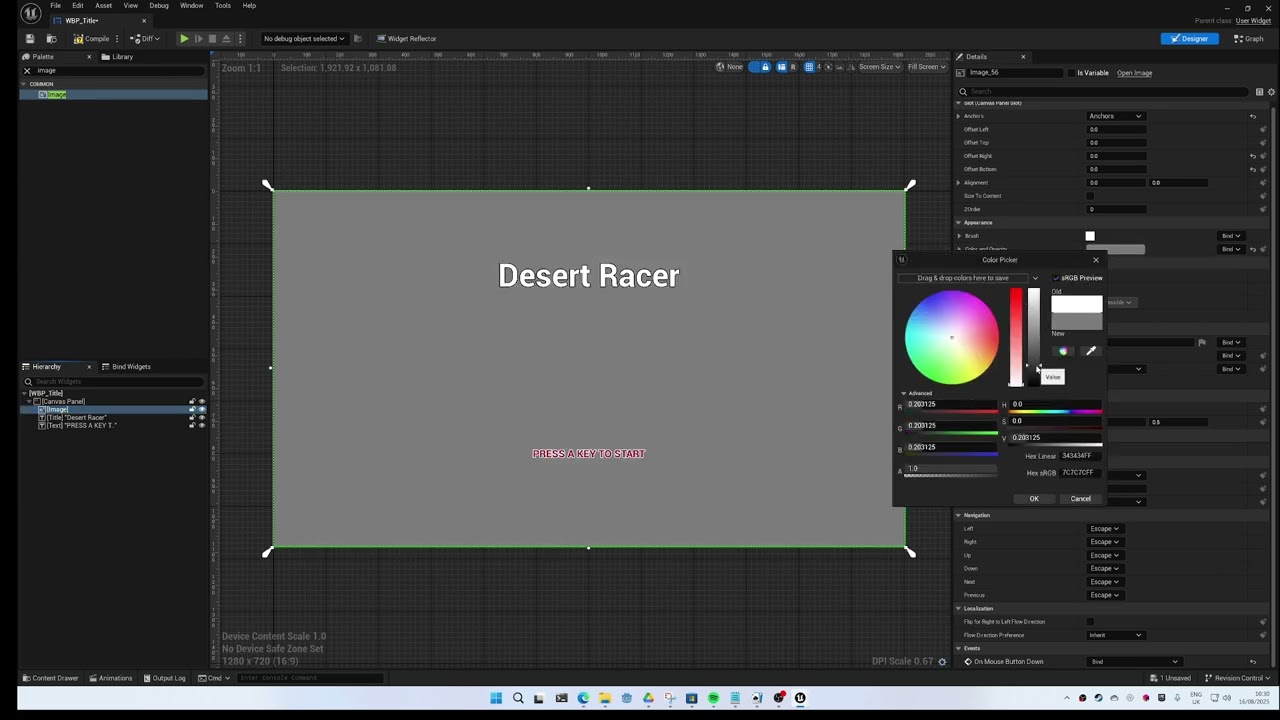
So, start witht he following. Make a user widget with how you want it to look. Even just a title and a press any key or something.
Then create a new blank level.
For that level, override the gamemode with a new gamemode.

Create a new pawn. It has nothing in but that is ok. We need this for input.

Assign the pawn in the game mode.

In the pawn, you can set up the create widget and add to viewport. Also, if you need input, you can add the keyboard press here to start. Just capture space or something for now and use that to open level by name and start the game.

I’m doing this off the top of my head so I may have missed a few things but do what you can and give me a shout if you get stuck.

Hope this helps

Oh, something else. Blueprint is best for UI stuff. It is just so much easier

2 Likes

awesome. I will give this a try this weekend. I liked the course, it just left me wanting for more. I guess that’s a good thing.

where is the discord invite? I’ll join and annoy everyone by asking 1000000 questions. haha

EDIT: it is on the main page. found it.

It is in the community lecture right at the start of the course. If you can’t find it, leave a reply here and will sort it out tomorrow as it is getting late here.

Hey Robert,
I decided to put this together for you and given you were doing the 2D course, I used Desert Racer. The audio is not the best but hopefully you’ll find it useful

1 Like

wow. this is amazing! thank you so much! Going to do this now. I have to go back over my notes to understand why the new game mode isn’t breaking the entire game, as I think I am mis-understanding what a game mode actually is.

the C++ version that CoPilot recommended was creating the widget BP, then create a C++ Hud Class, and then I got stuck because it says to assign the widget in the editor, and assign the title screen widget to the titlescreenwidgetclass. I was so lost as it didn’t fill in the blanks.

I see the ease of use of doing it in blueprints. on my own I’d like to learn how to do it with C++. I have Stephen Ulibarri’s Unreal C++ book, I’ll thumb through it later to see if it is there.

as for now I’m going to use your great tutorial and practice on creating a title screen!

The game mode is an override for the level. Its a thing you can do.

There is virtually no benefit to this in C++ as the code you need is really complex. I never or rather rarely use C++ for anything UI as a result.

here is something really interesting (at least to me):

so I was following your video, and I wanted to use a start and quit button. so I combined your video with the win screen of Kaan’s lesson.

  • created a new level
  • created a new widget for the title screen
  • edited it, created two buttons
  • created a new blueprint class derived from game mode base
  • entered the graph, did the part of your video where I did create widget->get player controller->set class in the widget->add to viewport
  • tried it, didn’t work. just loaded the game like normal.
  • went into the widget, used the lesson to give functionality to the buttons. used your lesson to make the start game call level 1 (in crusty pirate, btw). quit just quit.
  • still didn’t load, but if I opened level 0 it worked like it should.
  • clicked on List of World Blueprints->World Override->selected the title screen BP.
  • now everything seems to work?

I’m curious about using the override in that menu to launch the title screen BP. does that break anything else? how do I make sure the Crusty Pirate game mode is used after the game is started?

EDIT:: I was wrong, if I open up level 1, then hit play, it doesn’t load the title screen. what am I doing wrong? I didn’t make the pawn since I used the buttons, do I still have to do that?

EDIT2:: I think I found the answer after poking around youtube and forums:

  • copy reference of CrustyPirate game mode
  • paste in open level by name options, deleted last character and add _C, deleted before the slash of Game and add ?Game=
  • open project settings, modes and maps, set default game mode to title screen, set default map to level of the title screen
  • Profit?

EDIT3:: not profit. after going through the door of the first level, it goes back to the title screen. something is broken now. I had to get fancy. haha

1 Like

Title screens you have to keep separate from the list of levels, so you’d call it title or something. And instead of going back to level one when you die, you return to the title. I can’t remember how that works. The easiest way to do the Start and Quit is to show the mouse and add 2 button controls, with events to quit and go to level 1. Again Simple stuff. Just remember to hide the mouse when going into the actual game.

This is where you may want to look at the Game Instance. They are pretty nitfy for managing current level - you create one and set in the project settings in Maps and Modes.

So I originally wrote a big response about how frustrated I was and how poking around on Unreal’s Learning page, youtube, these forums, the lessons from the course, reddit, random forums in Google search results, the book I bought on Unreal programming, and random webpages, I was no closer to understanding how or why.

then I spent a few hours feeding unreal documentations into copilot and forcing it to teach me how to do what I need to learn. it took a lot of calling out missing and incorrect information (and probably a surge in electricity prices for everyone in my state), but I got there in the end and now I have a working title screen. I was able to also get it to give me the C++ version, which I find far easier and more intuitive than using blueprint graphs and nodes. I even have a basic modular code for adding fade in and out. I hate using “a.i”, but it was the only way I could get the answers I wanted after days of searching.

that is not to diminish what you did nor the video you made. it was incredibly useful, and it worked for a quick tutorial. I am truly appreciative of you always helping me out and helping me to understand concepts when I am stuck. I don’t want you to think I’m not appreciative!

I think I might eventually end up creating my own tutorial for others on how to create and integrate title screen menus in the future. I’m also going to hammer copilot today on how to create an options menu (with saving, button remapping, loading), integrating music/sound. dialogue, and an in-game menu in C++.

1 Like

Well, if there is specific things, I can possibly give you starting points for some of the key features in Unreal. There’s just so much you can learn. I spent the last 2 days making little assets like a landmine and a pickip system for a course. It is so much fun.

I have no use for them…yet.

1 Like

well, if you’re serious I’m stuck now. Neither Copilot or Gemini can seem to find the correct answer. apparently 5.4 broke how the audio systems work, and both chatbots have me running around in circles adding code that doesn’t work anymore and trying to create assets that no longer exist.

so now have music playing on each level and the title screen. I also now have a menu that pops up and pauses the game. the resume button works, and the quit button works. after bashing my head against the keyboard due to tons of conflicting information, I also now have an options sub-menu. the problem is, I can’t get a volume slider to work. NONE of the code I’ve tried for hours will hook onto the volume slider and actually adjust the audio volume.

how do I do that in 5.4+?

hunh, interesting. I can’t attach my headers and sources. I guess I’ll just manually paste them here. is there a character limit?

PauseMenu.h:

// Fill out your copyright notice in the Description page of Project Settings.

#pragma once


#include "CoreMinimal.h"
#include "GameFramework/PlayerController.h"
#include "InputAction.h"                      // For UInputAction
#include "InputMappingContext.h"              // For UInputMappingContext
#include "Blueprint/UserWidget.h"             // For UUserWidget

#include "PauseMenu.generated.h"

/**
 * 
 */
UCLASS()
class CRUSTYPIRATE_API APauseMenu : public APlayerController
{
	GENERATED_BODY()


public:
    virtual void SetupInputComponent() override;
    virtual void BeginPlay() override;
    APauseMenu();

    UFUNCTION()
    void TogglePauseMenu();


    UFUNCTION(BlueprintCallable)
    void ResumeGame();

    UFUNCTION(BlueprintCallable)
    void QuitGame();

    UFUNCTION()
    void ShowOptionsMenu();


protected:
    UPROPERTY(EditAnywhere, BlueprintReadWrite, Category = "UI")
    TSubclassOf<UUserWidget> PauseMenuClass;

    UPROPERTY(EditAnywhere, BlueprintReadWrite, Category = "UI")
    TSubclassOf<UUserWidget> OptionsMenuClass;

    UPROPERTY()
    UUserWidget* PauseMenuInstance;

    UPROPERTY()
    UUserWidget* OptionsMenuInstance;

  
    UPROPERTY(EditAnywhere, BlueprintReadOnly, Category = "Input")
    UInputAction* PauseAction;

    UPROPERTY(EditAnywhere, BlueprintReadOnly, Category = "Input")
    UInputMappingContext* InputMappingContext;

    
    bool IsPaused = false;

};

PauseMenu.cpp

// Fill out your copyright notice in the Description page of Project Settings.


#include "PauseMenu.h"

#include "EnhancedInputSubsystems.h"
#include "EnhancedInputComponent.h"

#include "Kismet/GameplayStatics.h"

#include "Components/Button.h"

#include "Kismet/KismetSystemLibrary.h"

#include "UObject/ConstructorHelpers.h" // Required for asset loading

APauseMenu::APauseMenu()
{
    static ConstructorHelpers::FObjectFinder<UInputAction> PauseActionAsset(TEXT("/Game/Input/InputAction_Menu"));
    if (PauseActionAsset.Succeeded())
    {
        PauseAction = PauseActionAsset.Object;
    }

    static ConstructorHelpers::FObjectFinder<UInputMappingContext> InputMappingAsset(TEXT("/Game/Input/InputMappingContext_CrustyPirate"));
    if (InputMappingAsset.Succeeded())
    {
        InputMappingContext = InputMappingAsset.Object;
    }

    static ConstructorHelpers::FClassFinder<UUserWidget> PauseMenuWidgetClass(TEXT("/Game/Blueprints/Other/WidgetBP_PauseMenu"));
    if (PauseMenuWidgetClass.Succeeded())
    {
        PauseMenuClass = PauseMenuWidgetClass.Class;
    }

    static ConstructorHelpers::FClassFinder<UUserWidget> OptionsMenuWidgetClassFinder(TEXT("/Game/Blueprints/Other/WidgetBP_OptionsMenu"));
    if (OptionsMenuWidgetClassFinder.Succeeded())
    {
        OptionsMenuClass = OptionsMenuWidgetClassFinder.Class;
    }

    
}


void APauseMenu::BeginPlay()
{
    Super::BeginPlay();

    if (UEnhancedInputLocalPlayerSubsystem* Subsystem = ULocalPlayer::GetSubsystem<UEnhancedInputLocalPlayerSubsystem>(GetLocalPlayer()))
    {
        Subsystem->AddMappingContext(InputMappingContext, 0);
    }
}


void APauseMenu::SetupInputComponent()
{
    Super::SetupInputComponent();

    if (UEnhancedInputComponent* EnhancedInput = Cast<UEnhancedInputComponent>(InputComponent))
    {
        EnhancedInput->BindAction(PauseAction, ETriggerEvent::Triggered, this, &APauseMenu::TogglePauseMenu);
    }

}

void APauseMenu::TogglePauseMenu()
{
    IsPaused = !IsPaused;

    if (IsPaused)
    {
        UGameplayStatics::SetGamePaused(GetWorld(), true);

        if (PauseMenuClass)
        {
            PauseMenuInstance = CreateWidget<UUserWidget>(this, PauseMenuClass);
            if (PauseMenuInstance)
            {
                PauseMenuInstance->AddToViewport();
                SetInputMode(FInputModeUIOnly());
                if (UButton* ResumeButton = Cast<UButton>(PauseMenuInstance->GetWidgetFromName(TEXT("ResumeButton"))))
                {
                    ResumeButton->OnClicked.AddDynamic(this, &APauseMenu::ResumeGame);
                }
                // Get a reference to the Options button and bind its OnClicked event.
                if (UButton* OptionsButton = Cast<UButton>(PauseMenuInstance->GetWidgetFromName(TEXT("OptionsButton"))))
                {
                    // This is the line that was missing or incorrect.
                    OptionsButton->OnClicked.AddDynamic(this, &APauseMenu::ShowOptionsMenu);
                }
                if (UButton* QuitButton = Cast<UButton>(PauseMenuInstance->GetWidgetFromName(TEXT("QuitButton"))))
                {
                    QuitButton->OnClicked.AddDynamic(this, &APauseMenu::QuitGame);
                }
                

                bShowMouseCursor = true;
            }
        }
    }
    else
    {
        UGameplayStatics::SetGamePaused(GetWorld(), false);

        if (PauseMenuInstance)
        {
            PauseMenuInstance->RemoveFromParent();
            PauseMenuInstance = nullptr;
        }

        SetInputMode(FInputModeGameOnly());
        bShowMouseCursor = false;
    }
}


void APauseMenu::ResumeGame()
{
    TogglePauseMenu();
}

void APauseMenu::QuitGame()
{
    UKismetSystemLibrary::QuitGame(this, this, EQuitPreference::Quit, true);
}


void APauseMenu::ShowOptionsMenu()
{
    if (OptionsMenuClass)
    {
        OptionsMenuInstance = CreateWidget<UUserWidget>(this, OptionsMenuClass);
        if (OptionsMenuInstance)
        {
            OptionsMenuInstance->AddToViewport();
            SetInputMode(FInputModeUIOnly());
            bShowMouseCursor = true;
        }
    }
}


I don’t even know if I’m doing this right. It’s working, but most likely this project is a mess now.

Well, this is getting into more advanced stuff. When I need to deal with that I use the Game Instance - the settings therefore persist throughout the game. Music is created via the instance. This also lets you persist music between levels and so it doesn’t restart.

I can’t really give you any code for this right now

So, Basically how this works is the Game Instance has a custom property that stores the volume. Changing the slider updates this and in this case, the game mode gets the volume. Anyway, the code goes in the blueprint and in spawns the music and stores as a variable. From there you can access the property. For Persisting the music, it’s a lot more complex and while I have done it, I don’t have an example to hand. This should get you going anyway.

void AMenuGameMode::SetSoundVolume(float Volume)
{
	if (MenuAudio)
	{
		MenuAudio->SetVolumeMultiplier(Volume);
	}
}

void AMenuGameMode::BeginPlay()
{
	Super::BeginPlay();

	GameInstance = Cast<UGlitchGameInstance>(GetGameInstance());
	if (!GameInstance) return;
	if (MainMenuMusic)
	{
		MenuAudio = UGameplayStatics::SpawnSound2D(this, MainMenuMusic,GameInstance->GetVolume());
		MenuAudio->Play();
	}
}

interesting. that is a COMPLETELY different way than I found. basically I imported the audio files. created sound cues for each. then I created a new class based on an actor. then I was able to drag those actors into each level and set their audio files on the details pane so each level and the menu all have different songs. here is the code:

// Fill out your copyright notice in the Description page of Project Settings.

#pragma once

#include "CoreMinimal.h"
#include "GameFramework/Actor.h"
#include "Sound/AmbientSound.h"
#include "Components/AudioComponent.h"
#include "LevelMusicActor.generated.h"

UCLASS()
class CRUSTYPIRATE_API ALevelMusicActor : public AActor
{
	GENERATED_BODY()
	
public:	
	// Sets default values for this actor's properties
	ALevelMusicActor();
	//control the volume 0 (lowest) to 1 (highest)
	UPROPERTY(EditAnywhere, BlueprintReadWrite, Category ="Audio")
	float MusicVolume{ 1.0 };
	//control looping
	
	//fade in and fade out
	UPROPERTY(EditAnywhere, BlueprintReadWrite, Category = "Audio")
	float FadeInDuration{ 2.0f }; //in seconds
	UPROPERTY(EditAnywhere, BlueprintReadWrite, Category = "Audio")
	float FadeInVolume{ 1.0 }; //volume level at end of fade in
	UPROPERTY(EditAnywhere, BlueprintReadWrite, Category = "Audio")
	float FadeOutDuration{ 2.0 };
	UPROPERTY(EditAnywhere, BlueprintReadWrite, Category = "Audio")
	float FadeOutVolume{ 0.0 };
	//choose the music per level (make it modular)
	UPROPERTY(EditAnywhere, BlueprintReadWrite, Category = "Audio")
	USoundBase* MusicToPlay;

	//making the Component callable from another method for class
	UPROPERTY()
	UAudioComponent* AudioComp;

protected:
	// Called when the game starts or when spawned
	virtual void BeginPlay() override;

public:	
	// Called every frame
	virtual void Tick(float DeltaTime) override;

	UFUNCTION()
	void HandleMusicWhenFinished();

};

LevelMusicActor.cpp:

// Fill out your copyright notice in the Description page of Project Settings.


#include "LevelMusicActor.h"

// Sets default values
ALevelMusicActor::ALevelMusicActor()
{
 	// Set this actor to call Tick() every frame.  You can turn this off to improve performance if you don't need it.
	PrimaryActorTick.bCanEverTick = true;

}

// Called when the game starts or when spawned
void ALevelMusicActor::BeginPlay()
{
	Super::BeginPlay();

	if (MusicToPlay)
	{
		AAmbientSound* AmbientSound = GetWorld()->SpawnActor<AAmbientSound>(AAmbientSound::StaticClass(), GetActorLocation(), FRotator::ZeroRotator);

		AudioComp = AmbientSound->GetAudioComponent();
		AudioComp->SetSound(MusicToPlay);
		AudioComp->OnAudioFinished.AddDynamic(this, &ALevelMusicActor::HandleMusicWhenFinished);
		AudioComp->bIsUISound = true;
		AudioComp->FadeIn(FadeInDuration, FadeInVolume);
	}
	
}

// Called every frame
void ALevelMusicActor::Tick(float DeltaTime)
{
	Super::Tick(DeltaTime);

}

void ALevelMusicActor::HandleMusicWhenFinished()
{
	if (AudioComp) AudioComp->Play();
}

I’m going to rhetorically shout into the void now.
why are there so many different ways to do things? why does Epic not create readable and useful documentation? why are there no sources for proper tutorials for this kind of stuff? why am I spending more time fighting the IDE and documentation than I am creating? when I need to know how something works in C++, I can go to cppreference or whatever and find documentation and examples. there is almost nothing for UE, and what is out there is mostly broken and outdated.

:rofl:
Thats the beauty of programming. There are different ways to do different things for different situations.

For example, you should use metasounds really rather tha. Sound Cues. They are more complicated but more powerful too.

I’ll have a proper look tomorrow as it is late.

1 Like

Ok,
The fade in/fade-out music is not really needed if you have the right music.
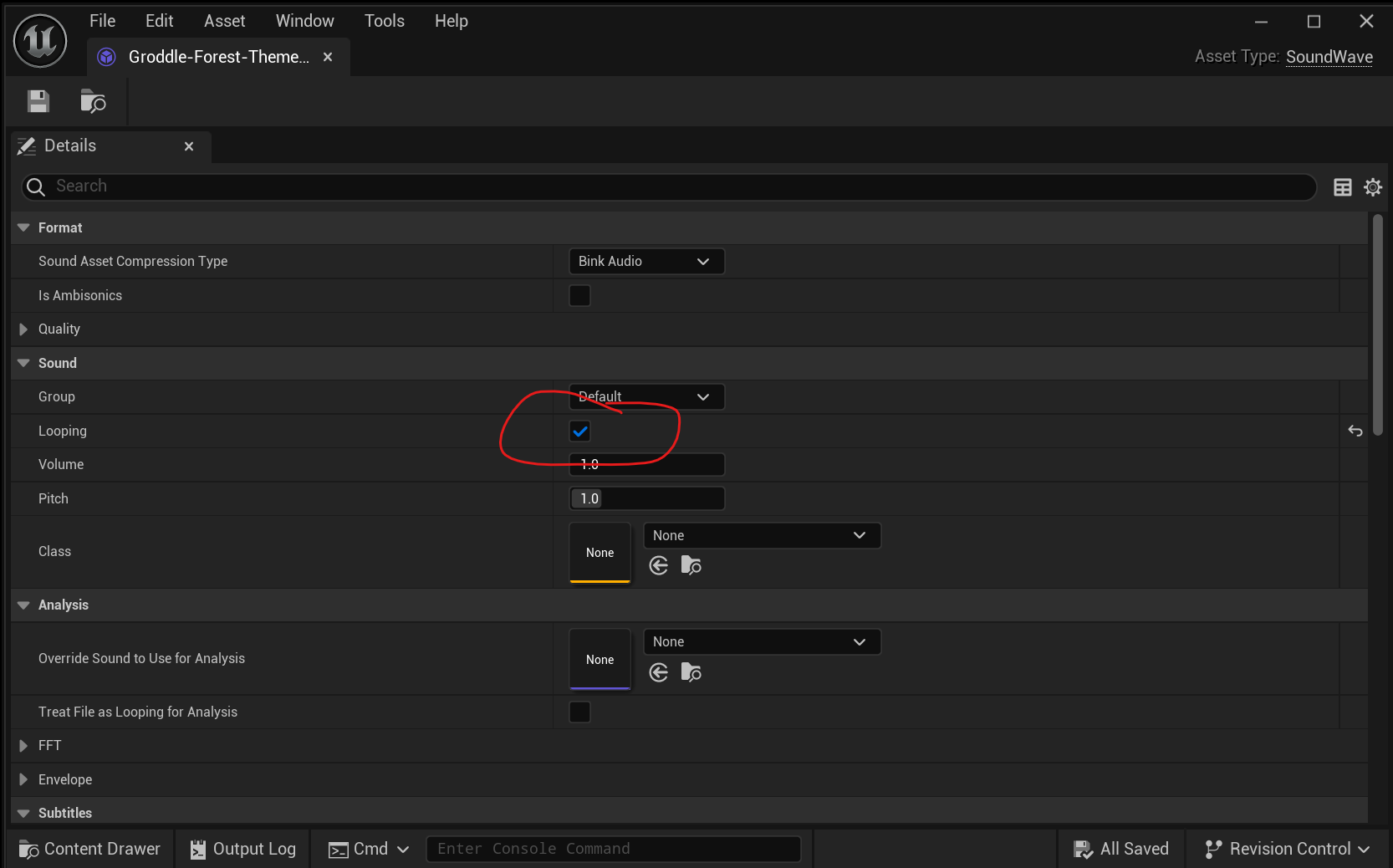
The looping can be done via both the Cue and MetaSound - no need for a callback to call play again - in fact, You can even apply it to the audio file directly.

So, looping, double-click on the audio file and it will open the properties for the file.


This eliminates about 90% of the code you have - basically, you play and you use UGameplayStatics::SpawnSound2D call and this returns a reference to a sound you’re spawning. SpawnActor is so wrong when dealing with audio - the Gameplay Statics library does a lot of this stuff for you.

Ignoring any sort of volume control, basically all you then have in the code is the following. Note the MainMenuMusic is a UPROPERTY of type USoundBase* and can be the raw file, a Cue or a MetaSound

	if (MainMenuMusic)
	{
		MenuAudio = UGameplayStatics::SpawnSound2D(this, MainMenuMusic,1.f);
		MenuAudio->Play();
	}

very interesting. so the loop would be a variable, then? I didn’t see it in the documentation. why in the world would I get the code I got if it is a much more simple process?

Wouldn’t I be using Spawn Actor because I created a C++ class for the music file, so I could drop it in each level and set the music there? if I’m doing it in the game instance, wouldn’t I lose that ability? What would I change the class to, since there isn’t C++ code for each level? (Using Crusty Pirate as an example)

also:

UFUNCTION (BlueprintCallable, BlueprintCosmetic, Category="Audio",  
          Meta=(WorldContext="WorldContextObject", AdvancedDisplay="2", UnsafeDuringActorConstruction="true", Keywords="play"))  
static UAudioComponent * SpawnSound2D  
(  
    const UObject * WorldContextObject,  
    USoundBase * Sound,  
    float VolumeMultiplier,  
    float PitchMultiplier,  
    float StartTime,  
    USoundConcurrency * ConcurrencySettings,  
    bool bPersistAcrossLevelTransition,  
    bool bAutoDestroy  
)

looking at the documentation that you linked for SpawnSound2D, I’m assuming the example you posted is an overload? the documentation shows many more variables (that of course they don’t explain). So WorldContextObject is the this variable, then the USoundBase object, then volume, then pitch (is 0.0 default pitch or is 1.0?), then start (i’m assuming in seconds, so 0.0 would be right away), ConcurrencySettings (no idea what this is), PersistAcrossLevelTransition, which I wouldn’t want, and AutoDestroy (which I assume is when the level unloads?). Your function only has three of those variables.

Also, we have to assign the Sound/Cue to the variable, so would you need a constructor helper there to find the file?

I know I am being resistant to using blueprints/editors, I’m just trying to understand what is going on under the hood since Unreal is obfuscating a lot of things in blueprints or editors.

EDIT:: I can only imagine how inefficient the code that I have for creating the menu, options, and title screen are thanks to using Copilot. Maybe I should give you access to the private github I back this up to.

Ok, the instance persists for as long as the game is running. Unless you have different music for each individual level, you can have the music not restart via the instance so it plays continuously.

Too many classes are bad too so having a function inside the instance and have the level blueprint pass in a new music track to play is better than having classes deal with it for example.

Also, for the code needed to play a music track and even volume adjust is not exactly huge so this is a case where reuse can sctually make things less mainrainable.

Saying that, controlling via the instance does centralise controls, audio volume etc, and saving settings and loading them in next time.

In the end it is about how you prefer to do it.

Why we do it via a variable is because it lets designers change the game design without code changes. So vial blueprint essentially. This is why we dont do everything in code. UMG is for UX designers, models and animation for 3d artists or 2d artists, level design, audio for designers too. So, exposing as a UPROPERTY enables these things to be altered with no code changes.

I hope this makes sense.